
GPT Image 2.6 AI Image Generator & Editor
Turn a prompt into a product shot, a richly detailed scene, or an illustrated world with GPT Image 2.6. Create from scratch or edit your own images with Flare and Sunburst, flexible formats, and resolution options up to 4K.
Loading model...
Bring Your Ideas into Focus with GPT Image 2.6
Create images around the subjects, materials, and settings that matter to your project. Explore these visual directions, then make them your own with a prompt or reference image.
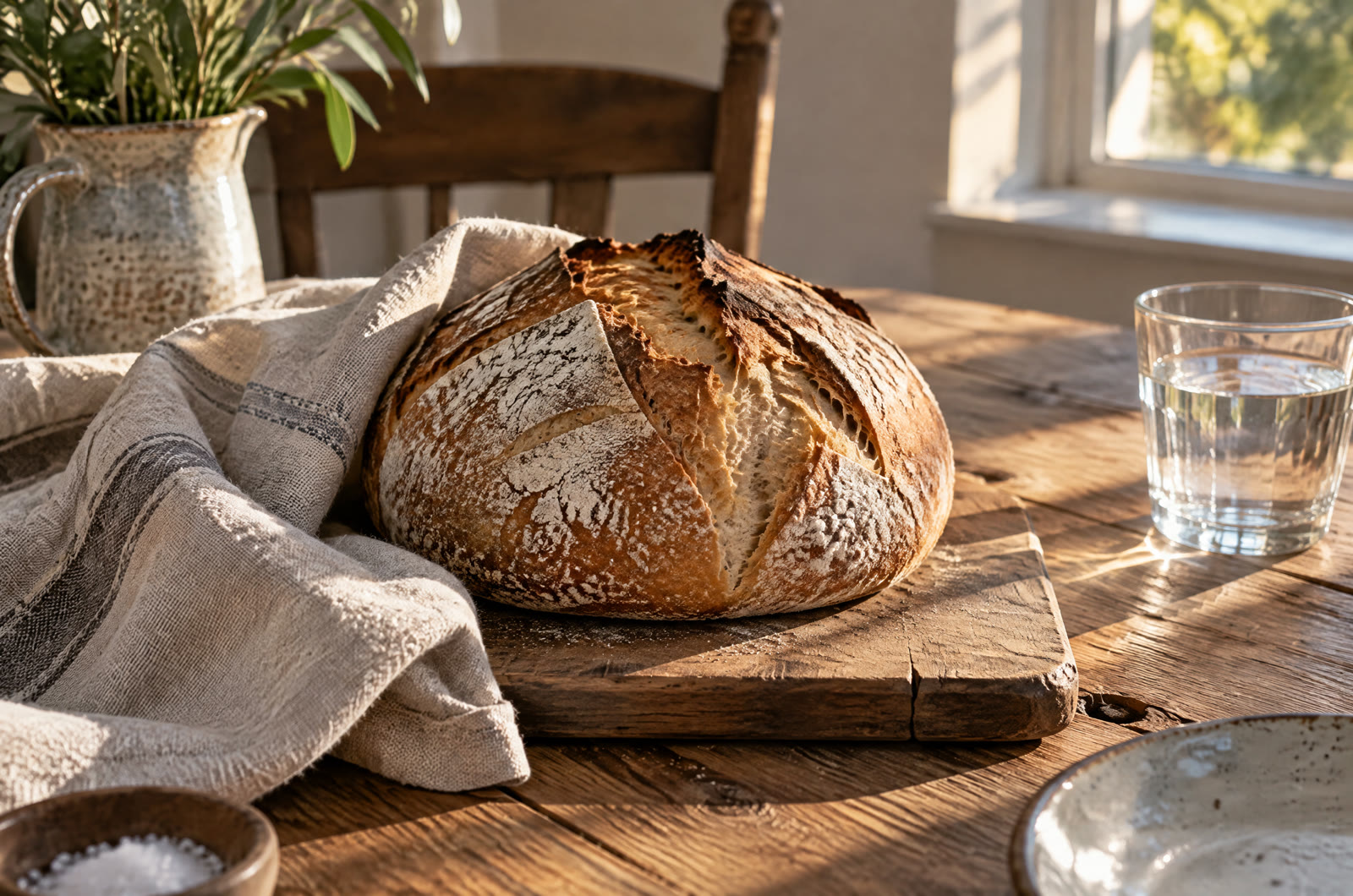
Make Light and Texture Part of the Story
Create still-life images that put atmosphere first: warm window light, a crisp bread crust, soft linen, or reflections on glass. With GPT Image 2.6, describe the materials and lighting in the same request. Build food, lifestyle, and editorial scenes around a few carefully chosen objects, with space for the details to stand out.
GPT Image 2.6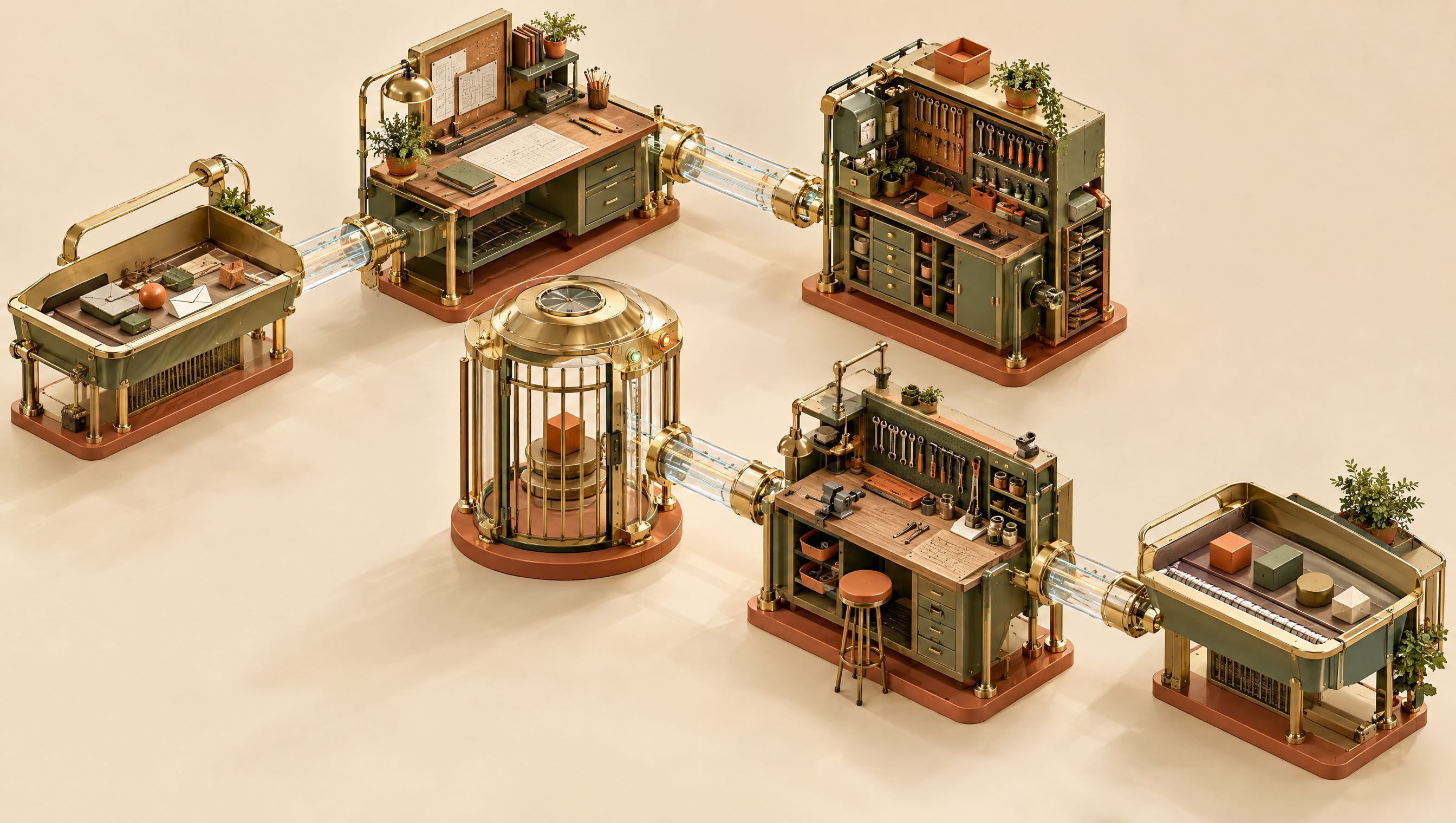
Build Detailed Scenes from One Description
Turn an imagined workshop, miniature interior, or elaborate environment into a visual concept with GPT Image 2.6. Set the viewpoint, arrange the main objects, and describe how the smaller details connect. An isometric workshop with brass fittings and glass tubes is one direction; a quiet reading room or futuristic storefront is another.
GPT Image 2.6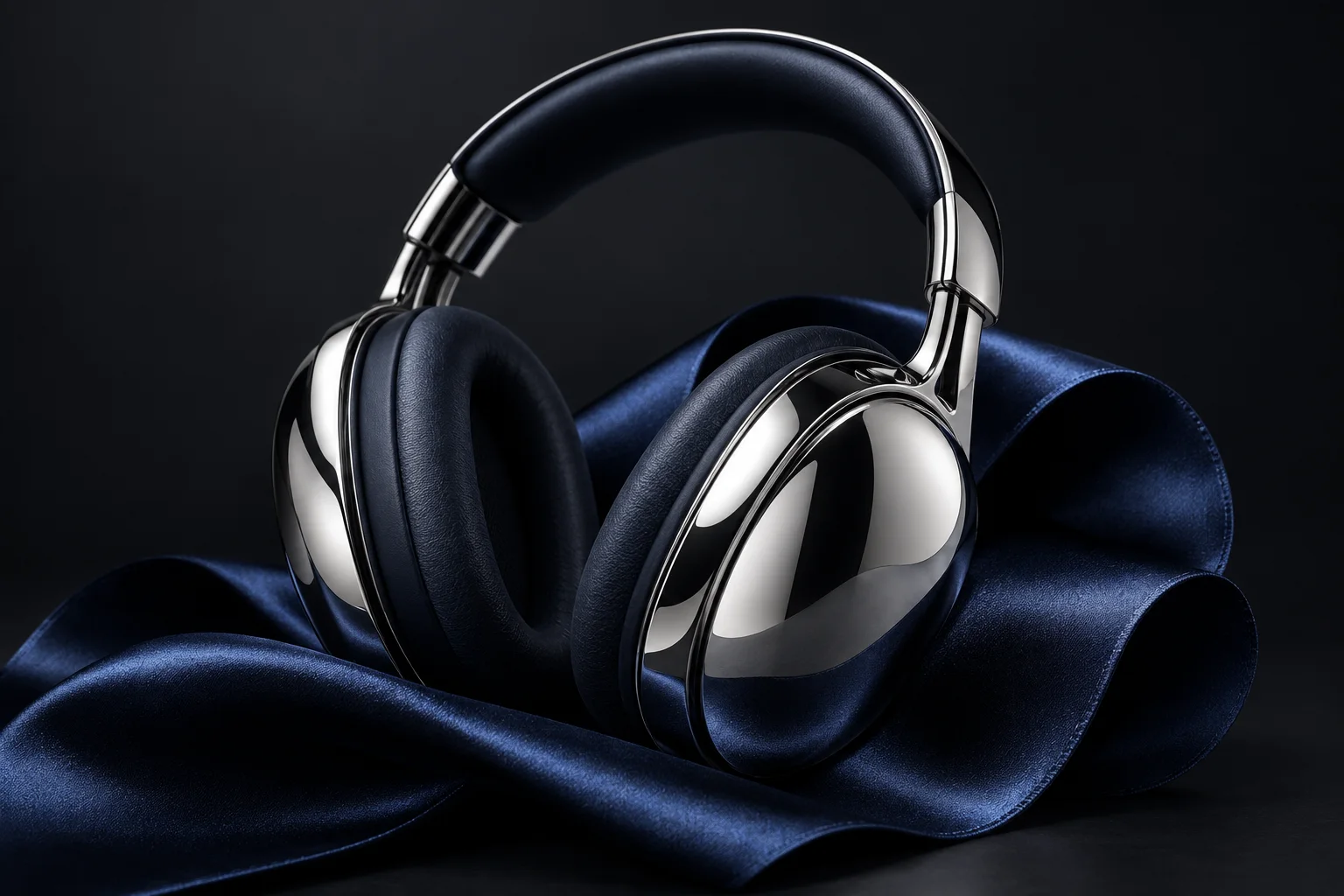
Give Your Product a Setting of Its Own
Use GPT Image 2.6 to explore studio lighting, new backdrops, and material combinations for product imagery. Start with a written concept or upload a product reference and describe the change. Try polished metal against dark satin, ceramics on pale stone, or packaging in a bright tabletop scene for your next presentation.
GPT Image 2.6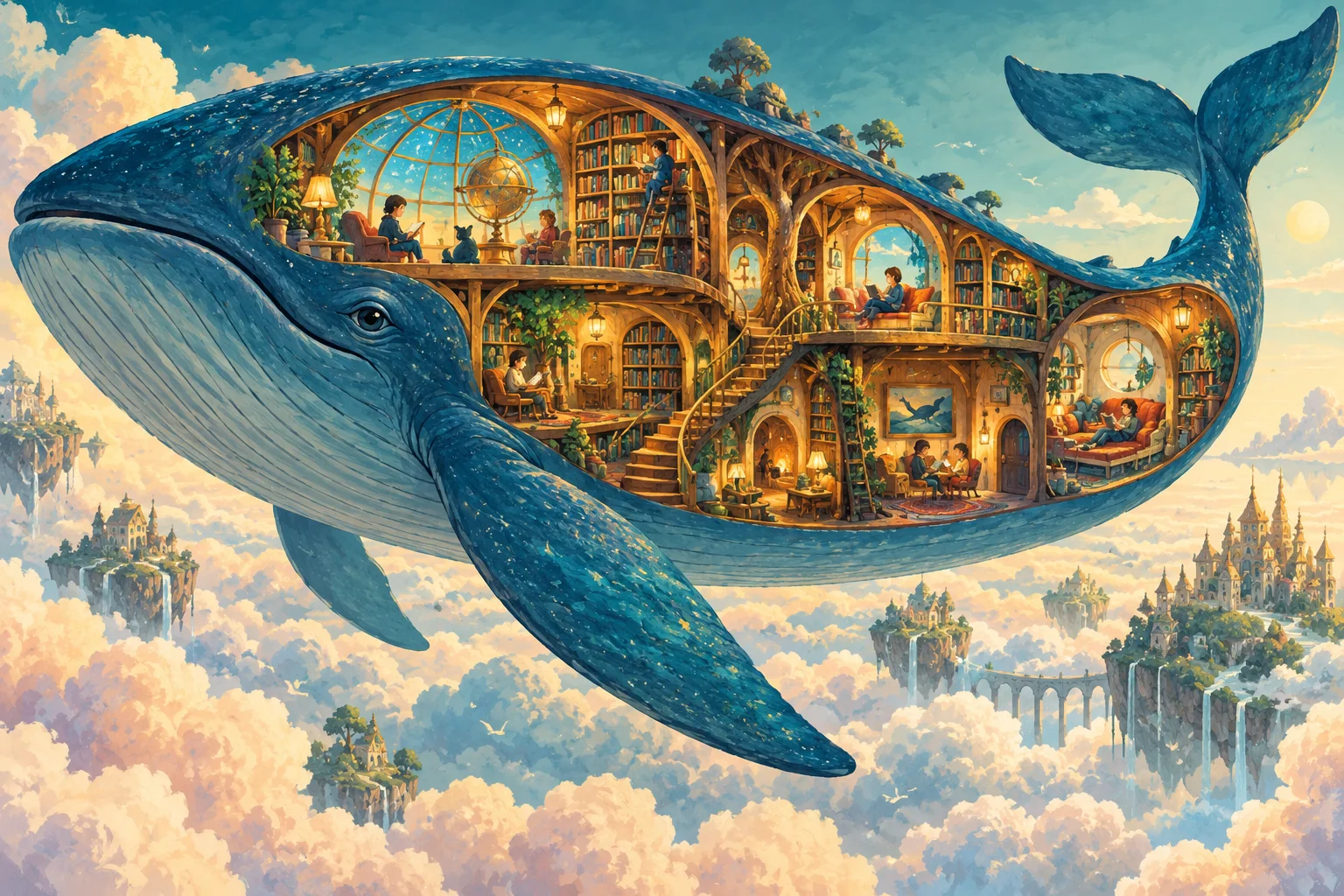
Turn Unusual Ideas into Illustrated Worlds
Create a floating library inside a whale, a city above the clouds, or a tiny home inside an everyday object. GPT Image 2.6 lets you describe the scene, palette, and illustration style together. Develop story concepts with a clear focal point, then use the downloaded image as a reference for further edits.
GPT Image 2.6How to Create with GPT Image 2.6
Start with a description or an image, choose your settings, and download the result.
Describe an Image or Upload References
Describe the subject, setting, lighting, and style. To edit an image, upload your main image first and add supporting references. State what should change and what to keep. Use the main-image control to reorder your references.
Choose the Model and Output Settings
Select Flare or Sunburst, then choose your aspect ratio, resolution, quality, and output format. For reference editing, select Auto to match the main image’s proportions. Open Advanced Settings when you need Complexity controls or want to upload a mask or markup PNG to guide an edit.
Generate, Check, and Download
Click Generate and check the composition, object details, and lettering in the result area before downloading. To refine a result, upload the saved image and describe your next change, including what to preserve.
Why Create with GPT Image 2.6?
Choose how to explore an idea, guide a specific edit, and prepare visuals for different projects.
⚡ Two Models for Different Priorities
GPT Image 2.6 gives you Flare for fast creative iteration and Sunburst for detailed visual work. Explore directions with Flare, or choose Sunburst for intricate elements. Both support generation and editing, so you can compare the same prompt and references across the two models.
🎯 Show Exactly Where You Want a Change
A written request describes an edit; a mask or markup adds a visual guide to its location. With GPT Image 2.6, upload a PNG mask for an editable area or a transparent annotation layer with circles and arrows. This helps communicate changes such as recoloring one vase or replacing a background.
🖼️ Shape the Output Around Its Destination
Choose from 15 aspect ratios and 1K, 2K, or 4K resolution options. GPT Image 2.6 also separates quality from scene complexity, giving you controls for rendering detail and layout planning. Compose for a square post, a portrait graphic, or a wide banner from the start, with room for the subject and supporting elements.
📦 Product Visuals for Your Next Presentation
Explore packaging concepts, product settings, and still-life arrangements. Upload a product reference to request a different surface, backdrop, or lighting treatment. Compare the result with your original to check the shape, labels, and materials before adding it to your presentation.
📚 Story Illustrations and World Building
Develop settings for a story, a game concept, or an illustrated pitch. Describe the scale, viewpoint, and mood, then add the details that make the scene distinctive. GPT Image 2.6 can work from text or visual references, giving you a starting point for exploring architecture, props, and imagined environments.
✨ Graphics That Scale or Move
Create simple icons and flat illustrations as SVG files, or choose GIF for a short animated loop from a text prompt. GPT Image 2.6 offers frame-count and timing controls for GIF output. Describe a focused motion, such as a swaying leaf or rotating object, and inspect the downloaded animation before sharing.
GPT Image 2.6 Questions, Answered
Practical details about references, editing guidance, file formats, and the examples on this page.
How many reference images can I upload?
GPT Image 2.6 accepts up to 16 reference images in this studio. Use JPG, PNG, or WebP files up to 30MB each. Put the image you want to edit first, and explain what each additional reference contributes. Choose Auto to follow the main image’s proportions.
Should I use a mask or a markup image?
Use a mask to mark an area: white or transparent regions identify where to edit, while black identifies what to preserve. Use markup for circles, arrows, or other visual annotations. Upload either one as a PNG in Advanced Settings. Markup needs a transparent background and the same dimensions as your main image; both guidance types apply to that first image.
Can I export GIF or SVG when editing an image?
In this studio, GIF and SVG are available when generating from text. Reference-image edits export as PNG, JPEG, or WebP. Adding a reference while GIF or SVG is selected switches the output to PNG. For text-generated GIFs, choose 2–16 frames and adjust the frame duration to control playback timing.
What is the difference between resolution, quality, and complexity?
Resolution sets the output size tier; the actual dimensions depend on the aspect ratio. Quality controls rendering detail across Low, Medium, High, XHigh, and Max. Complexity controls how much planning goes into the composition. In GPT Image 2.6, these are separate choices, so a larger image does not automatically use a higher quality setting.
Can I continue editing an image I just generated?
Yes. Download the result, upload it as the main reference, and write the next edit. Repeat any instructions that still matter: each request uses its own prompt and attached images. Compare the new version with the previous one before continuing.
Were the showcase images made with GPT Image 2.6?
The images on this page are creative references for still life, detailed spaces, product imagery, and illustration. They are not presented as GPT Image 2.6 outputs. Use them to explore a direction, then judge your generated result against your own prompt and references.