
GPT Image 2.5 AI Image Generator
Bring your ideas into focus with GPT Image 2.5: richer textures, natural lighting, and edits that keep your subject recognizable. Choose Flare for faster exploration or Sunburst for detailed creative work.
Loading model...
More Detail, More Control: GPT Image 2.5
Build intricate artwork and refine the details that matter with GPT Image 2.5. Explore coordinated illustrations, tactile materials, and imaginative worlds from a written brief or reference image.
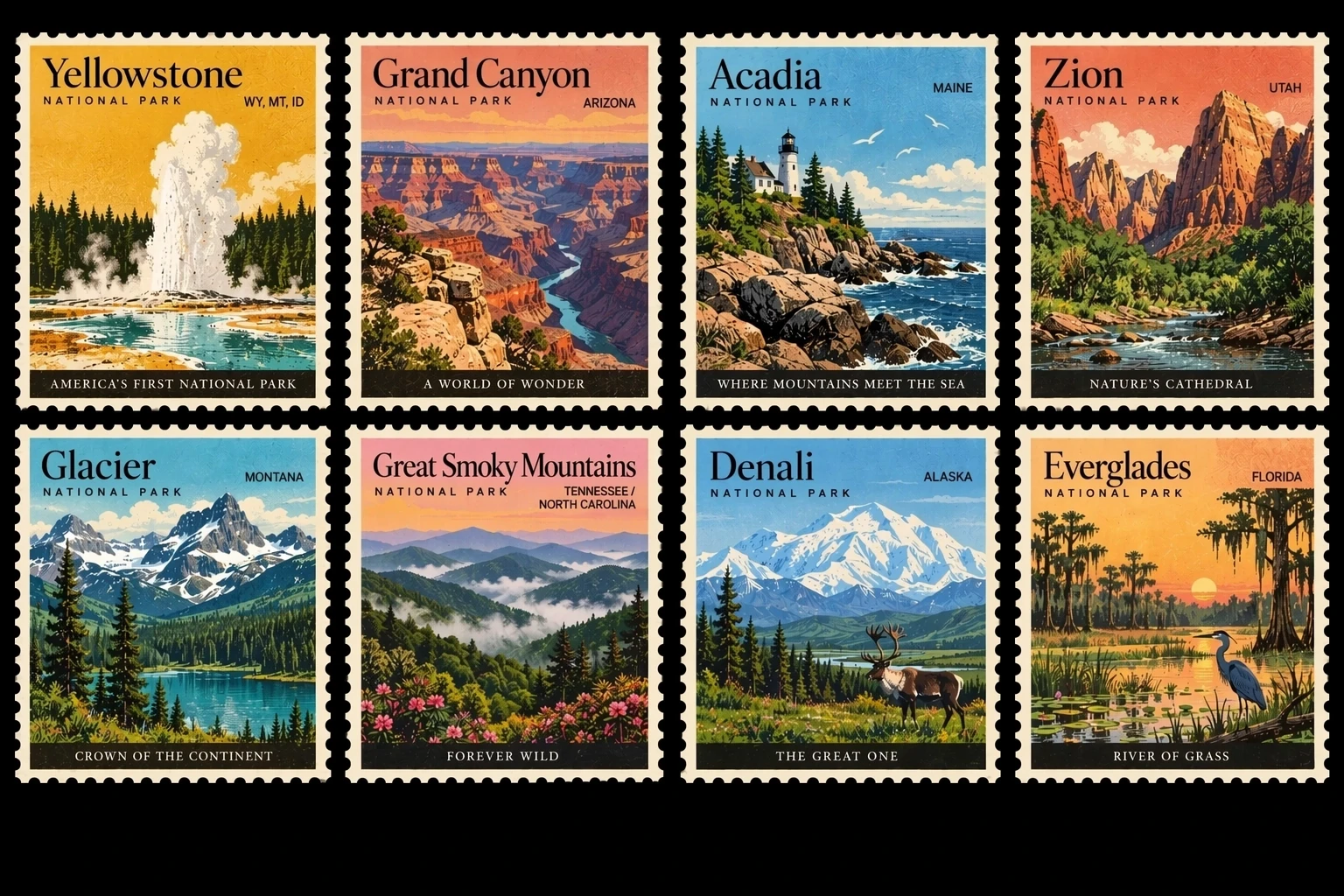
Bring Order to Detailed Visual Briefs
Plan a coordinated set of illustrated stamps, each with its own landscape, heading, and caption. GPT Image 2.5 handles complex layouts and visual instructions more reliably, helping the pieces follow a shared design. Describe the grid, quote each label, and specify a consistent border and color palette for the collection.
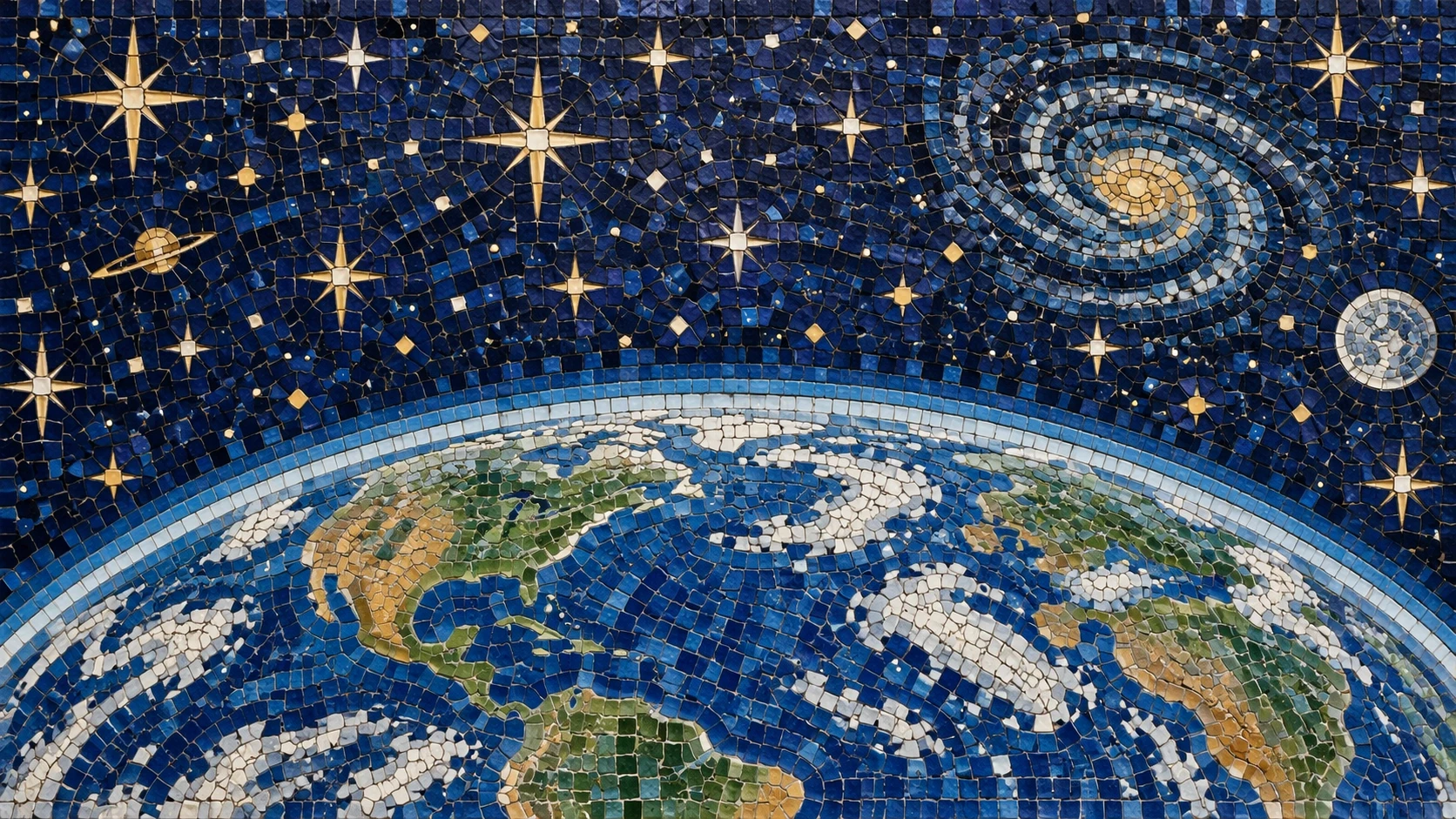
Give Every Surface a Sense of Texture
Make an imagined material feel tangible, from uneven mosaic tiles to reflective metal and woven fabric. GPT Image 2.5 brings richer textures and more natural lighting to your artwork. For a mosaic like this one, describe the tile shapes, visible grout, deep blue glass, and small gold highlights that define the surface.
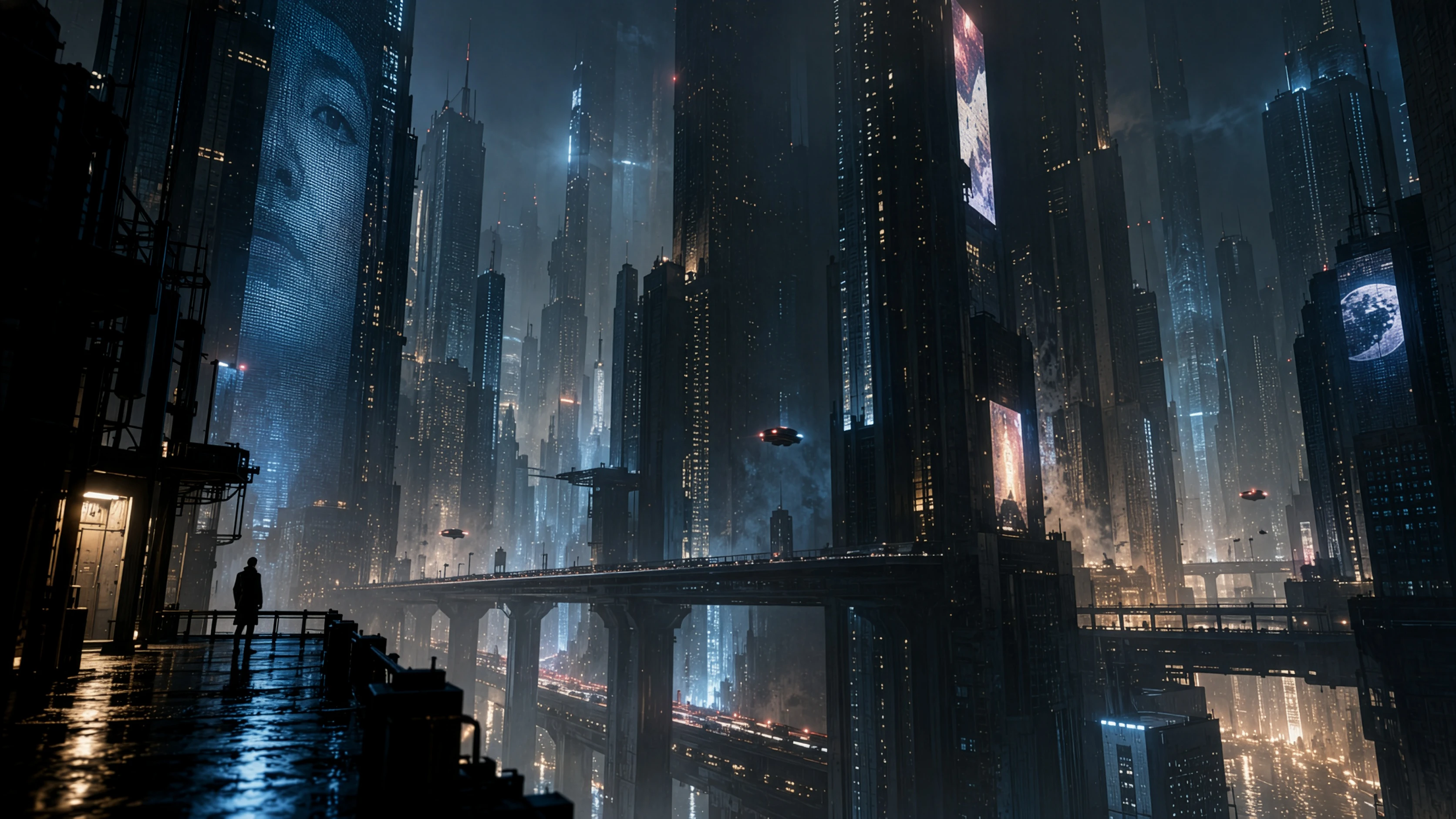
Refine a Scene with Focused Edits
Change the glow of a sign or the color of a skyline while asking to preserve the surrounding scene. GPT Image 2.5 improves targeted editing and reference fidelity. Upload your cityscape, name the element to adjust, and list the buildings, reflections, and viewpoint you want to keep in place.
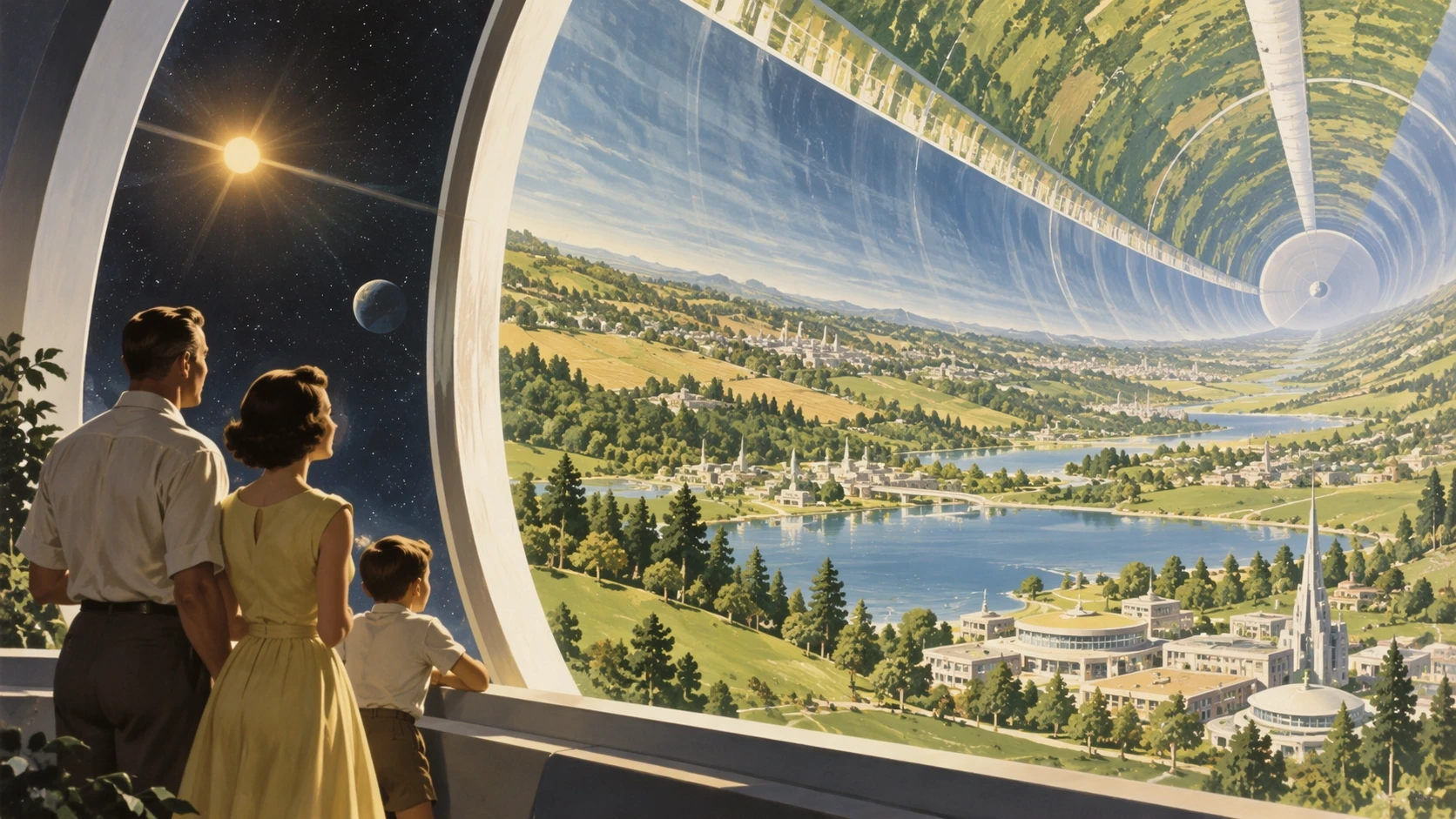
Make Imaginative Worlds Feel Coherent
Picture a sunlit neighborhood curving around the inside of a vast space habitat. GPT Image 2.5 follows intricate scene descriptions and artistic direction, bringing subjects, scale, and atmosphere together. For a scene like this illustration, place the family in the foreground, describe the landscape beyond, and specify a warm, retro-futuristic finish.
Your First GPT Image 2.5 Creation
Move from a written brief to a downloadable image with GPT Image 2.5.
Choose a Model and Add Your Brief
Select Flare or Sunburst. Write a description for Text to Image, or add up to 16 reference photos to switch to Image to Image. For edits, say what should remain unchanged and what should change. Remove all references to return to creating from text alone.
Match Shape, Resolution, and Background
Choose 1K, 2K, or 4K, then select a shape such as 3:2 for a landscape or 3:4 for a portrait. Set the background to Auto, Opaque, or Transparent. GPT Image 2.5 automatically returns to 1K when you pick one of the four shapes that require it.
Generate, Review, and Download
Generate one image and review it in the result area. Download the returned file, keeping PNG or WebP for transparent artwork. To continue editing with GPT Image 2.5, upload that result as a new reference and describe the next change, including the details you want to preserve.
Why Create with GPT Image 2.5?
Choose how you work: explore ideas quickly, refine a chosen direction, or build artwork around an existing reference.
⚡ Explore More Directions with Flare
Choose GPT Image 2.5 Flare for fast, everyday image creation. Use it to compare a bright daytime city with a rainy evening version, or try several poster concepts one at a time. It is the speed-focused starting point when you are still deciding which direction to pursue.
🎯 Give Detailed Work to Sunburst
Choose GPT Image 2.5 Sunburst when editing precision matters most. Its focus on careful refinement suits product imagery and campaign artwork with specific requirements. Compared with Flare, allow more generation time when choosing Sunburst for a detailed brief or a closely controlled edit.
🧩 Build on a Visual Starting Point
Compared with describing a familiar subject entirely in words, uploading a reference gives your brief a concrete starting point. Use the GPT Image 2.5 image generator to explore a different setting or style, with a short checklist of the recognizable details that should carry into the result.
🏷️ Design Sticker and Merch Concepts
Turn a mascot idea into a sticker sheet, a badge, or an isolated illustration for a shirt. Request a transparent background for artwork you plan to place over another design. Specify separate shapes, bold outlines, and generous spacing so individual elements are easier to work with afterward.
🖼️ Develop Posters with a Clear Hierarchy
Use GPT Image 2.5 to plan a main headline, supporting line, and central illustration together. A brief such as “large yellow title above a black cat on blue paper” makes the visual priorities concrete. Quote the wording and check every line before using the finished poster.
🌌 Pitch a World Before Building It
Use the GPT Image 2.5 image generator to explore settings for a story, game, or presentation. Describe where the viewer stands, the scale of the surroundings, and the feeling of the light. Try a wide 16:9 scene for a slide or 21:9 for a panoramic concept.
GPT Image 2.5 Questions, Answered
Practical details about prompts, output choices, and using this generator.
Which shapes are limited to 1K?
The four options 27:16, 16:27, 9:8, and 8:9 support 1K only. Choosing one resets the resolution to 1K and disables the larger options. Auto, 1:1, 3:2, 2:3, 16:9, 9:16, 4:3, 3:4, and 21:9 allow 2K and 4K as well.
Which reference images can I upload?
Both Flare and Sunburst accept up to 16 JPG, PNG, or WebP reference images here, each up to 30MB. Uploading a reference selects Image to Image automatically. GPT Image 2.5 uses all attached references for one output image; it does not create one output per uploaded file.
What is the difference between Auto, Opaque, and Transparent backgrounds?
Auto lets the model choose the background based on your prompt. Opaque creates a fully visible background with no transparency, such as a scene or a solid color. Transparent creates a subject with a transparent background, ready to place over other images or designs. Choose Auto when you have no specific background requirement, Opaque for a complete image with a background, or Transparent when you want to reuse the subject in another design.
What is the difference between Flare and Sunburst?
GPT Image 2.5 Flare prioritizes speed for everyday image creation and exploring ideas. Sunburst prioritizes editing precision, making it a good choice for detailed refinements and carefully controlled changes. Choose Flare to try creative directions quickly, or Sunburst when precise edits matter most. Both support text prompts and reference images. On this site, both use the same credits per image: 10 for 1K, 40 for 2K, and 65 for 4K.
How do I request a transparent Sunburst edit?
For a 2K or 4K Sunburst edit, select Transparent and describe the subject you want to keep. Ask to extract it without backdrop, scenery, or shadow. For a new transparent image, describe an isolated subject the same way. Inspect the downloaded edges against light and dark backgrounds.
Why can text or small details need another attempt?
GPT Image 2.5 can still misread a visual instruction or produce an incorrect letter. Keep headings short, quote the exact wording, and ask for enough space around it. Inspect names, numbers, fingers, and repeated patterns before using the image in a finished design.