
GPT Image 2.6 AI Image Generator
Explore your next product image, detailed scene, or illustrated world. Bring a written idea or reference image to the studio, then shape the light, materials, colors, and composition around your project.
Loading model...
A Creative Starting Point for GPT Image 2.6
Find a visual direction for your next project, from sunlit still life and miniature spaces to polished products and illustrated worlds. Use these scenes as inspiration for your own brief.
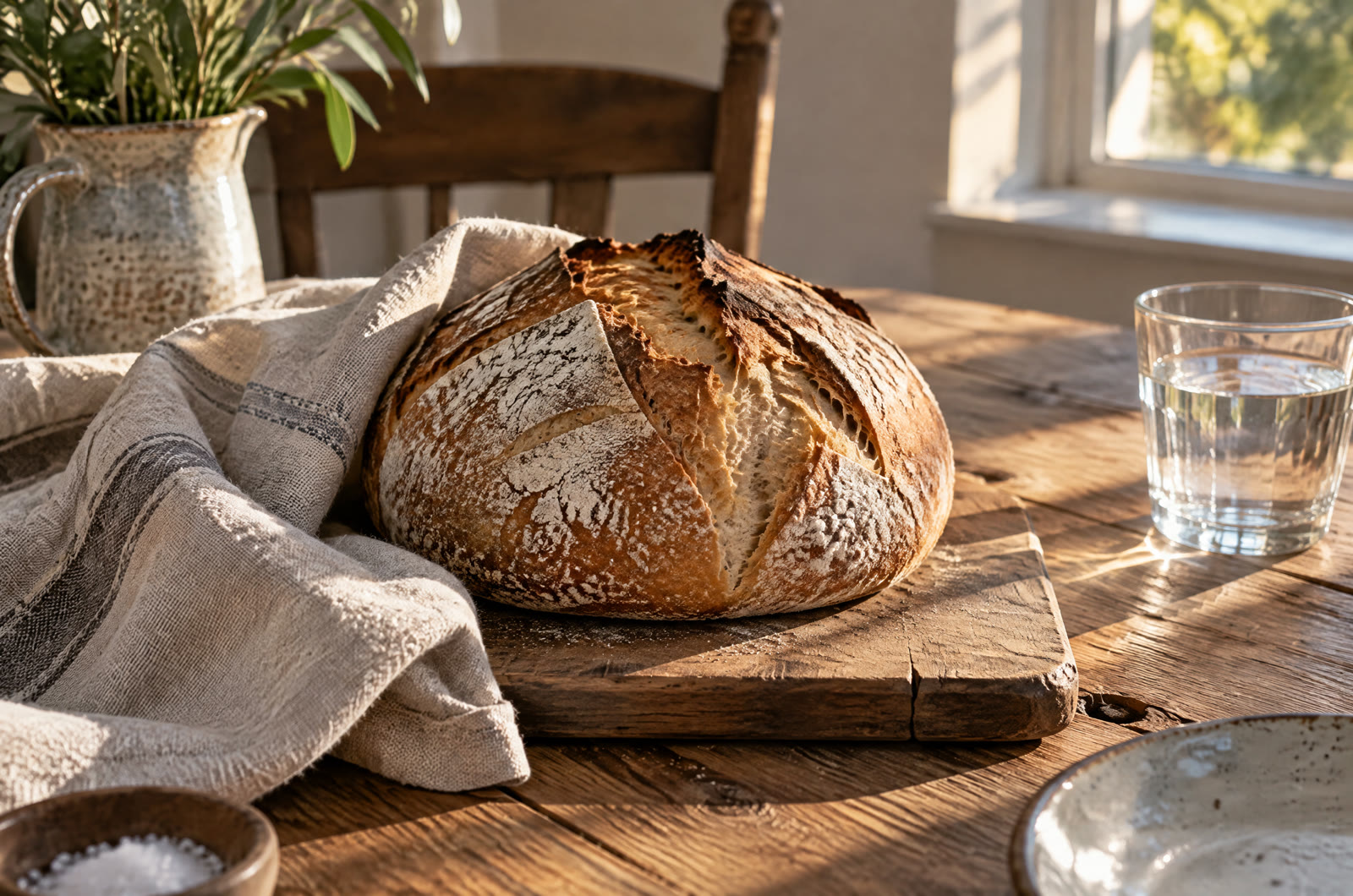
Light and Texture in Everyday Scenes
Build a scene around the details that make materials feel tangible: a cracked bread crust, soft linen, and warm light across a wooden table. For a GPT Image 2.6 creative brief, name the light direction and the textures you want to explore. Keep the arrangement simple so each surface has room to read clearly.
GPT Image 2.6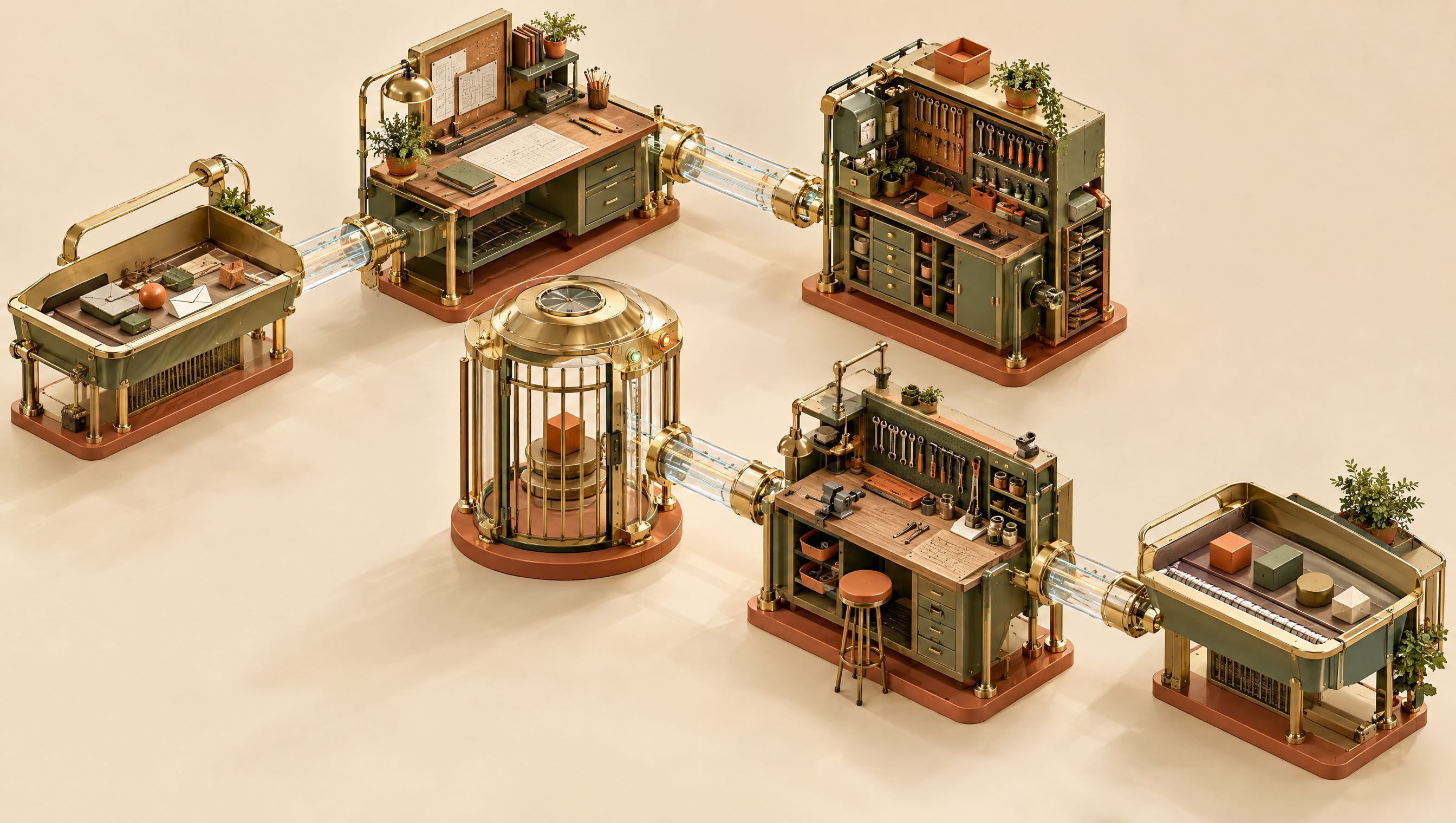
Intricate Spaces with a Clear Composition
Explore a detailed miniature world made from brass, wood, and glass. This GPT Image 2.6 concept direction uses an isometric view to organize workstations and connecting tubes into one scene. Describe the placement of the major objects first, then add the small tools, plants, and material finishes that give the setting character.
GPT Image 2.6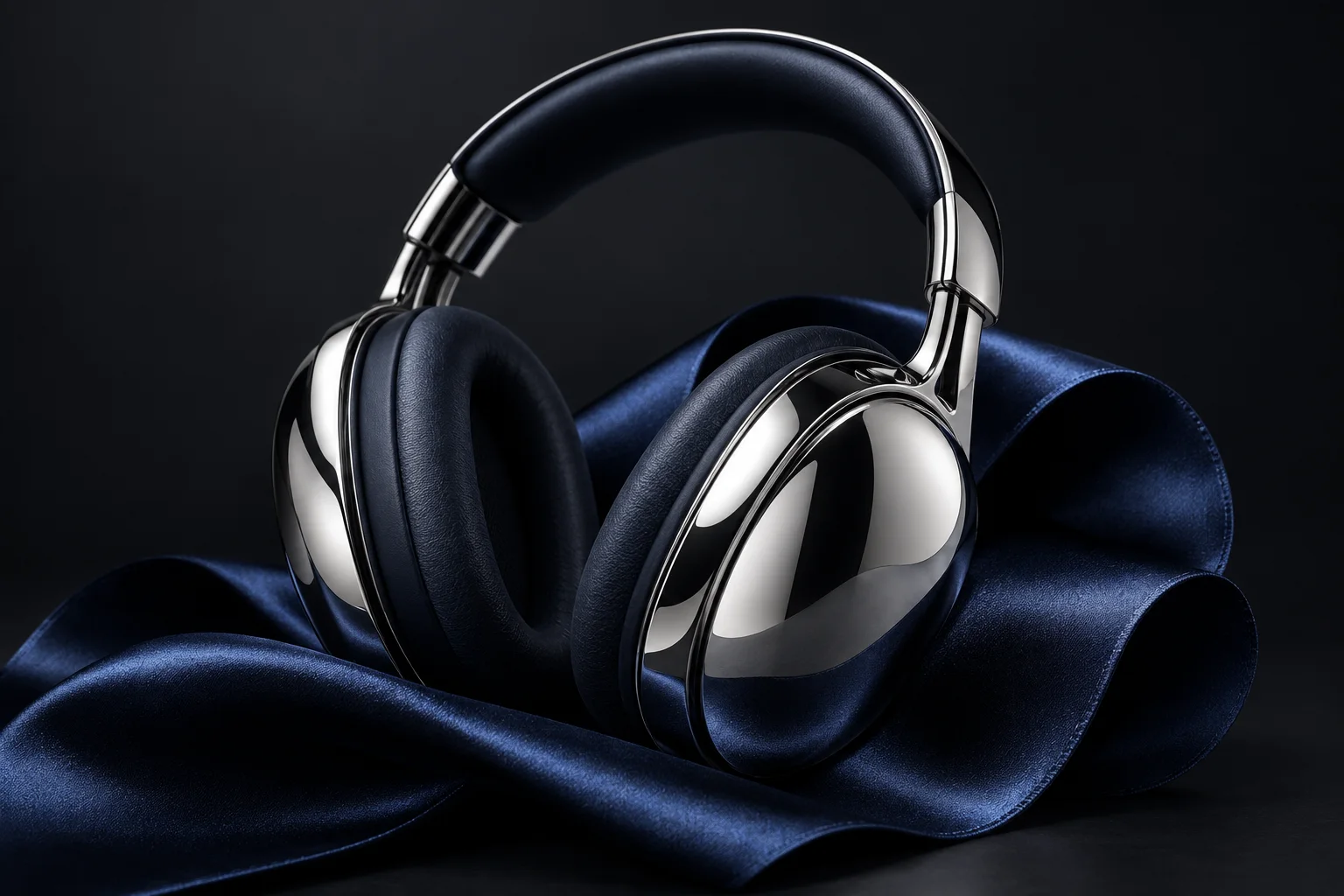
Product Concepts with a Strong Focal Point
Give a product concept one clear focal point with sculpted light and a restrained background. For a GPT Image 2.6 product brief, specify the silhouette, reflective finish, fabric, and camera distance. This chrome-headphone direction pairs bright metal edges with dark blue satin, leaving the product itself to carry the composition.
GPT Image 2.6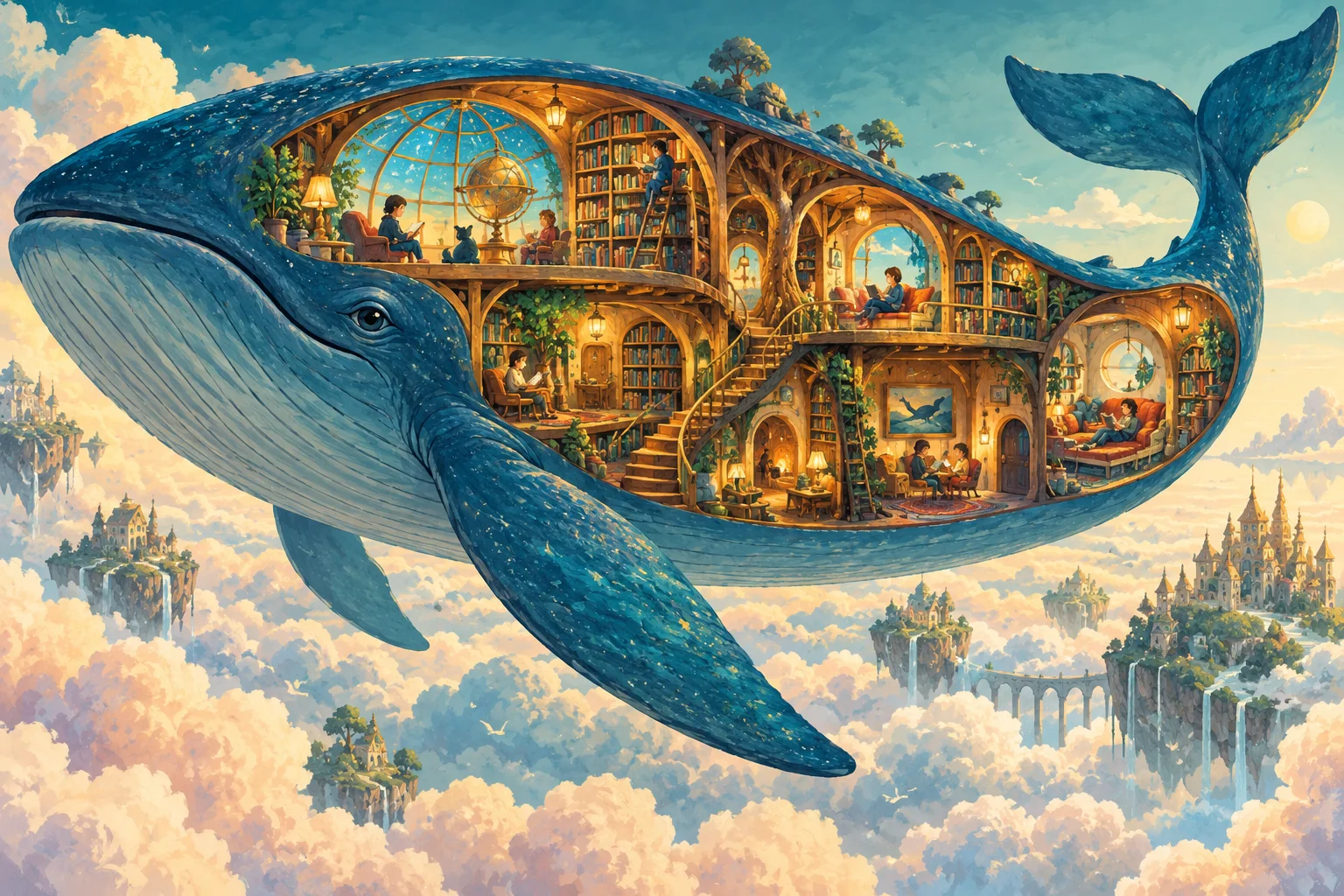
Imaginative Worlds with a Shared Color Story
Imagine a flying whale with a library hidden inside, warm rooms, curved staircases, and distant castles above the clouds. A GPT Image 2.6 illustration brief can define the cutaway view, the blue-and-gold palette, and the relative scale of the details. Use the visual reference to plan the story and composition of your own scene.
GPT Image 2.6From a GPT Image 2.6 Idea to Your Next Image
Work with the model named in the selector, keep your brief specific, and review one result at a time.
Choose Your Model and Starting Point
Check the selected model. Write a scene description to start from text, or upload a reference for an edit. Name the subject, materials, lighting, and mood. Explain which visible details to keep and which to change.
Set the Shape for Your Project
Use the controls offered by your selected model. Choose a portrait frame for a profile or a wide frame for a campaign banner. Review the available resolution and background options before generating. For a GPT Image 2.6 concept, keep the first request focused on one scene rather than several unrelated ideas.
Review, Refine, and Download
Generate an image, inspect it in the result area, and use Download to save the returned file. Check faces, fingers, patterns, and any lettering. To continue with an edit in the current GPT Image studio, upload the saved result as a reference and describe one focused change.
Build Your GPT Image 2.6 Creative Direction
A practical workspace for exploring a visual brief with the image models currently available in the selector.
🎨 A Brief You Can Actually Evaluate
Turn a broad GPT Image 2.6 idea into a concrete request with a subject, setting, palette, and light source. A description such as “chrome headphones on dark blue satin” gives you visible details to check. Keep your successful wording so you can compare later attempts against the same creative direction.
🧭 A Visual Anchor for Your Edits
Compared with describing an existing object entirely in words, a reference image gives the generator a visible starting point. Use a short preservation checklist for the silhouette, colors, and materials. Review the result for unwanted changes before using it as the starting point for another edit.
🎛️ Choose How to Explore a Direction
The available GPT Image 2.5 studio offers Flare for fast everyday creation and Sunburst for work where editing precision matters most. Choose between those real variants as you develop a GPT Image 2.6 concept. Their controls belong to the selected model; compare results using the same brief and reference.
📦 Product and Still-Life Concepts
Explore a product against a simple backdrop, or build a still life with wood, linen, glass, and directional light. Describe the object’s shape and material separately from its surroundings. Use your GPT Image 2.6 creative direction to keep the focal point clear while trying different colors, surfaces, or lighting arrangements.
🐋 Illustrated Worlds and Story Ideas
Develop a scene for a story, a presentation, or a visual mood board. Define the viewpoint and scale before listing small details such as staircases, lamps, or distant buildings. For a GPT Image 2.6 illustration concept, choose a shared palette and decide how much of the imagined world belongs in the frame.
🖼️ Campaigns Across Different Frames
Plan one wide composition for a banner and a separate portrait composition for a social post. Describe where the subject should sit in each frame, including room for copy you will add later. A shared palette and styling brief can connect the images while allowing each format its own composition.
GPT Image 2.6 Questions, Answered
Model availability, reference workflows, and reviewing the images you create.
Which model does this page use right now?
The studio currently starts with GPT Image 2.5, shown by its real name in the selector. GPT Image 2.6 is not registered as an available model on this site. The creative examples on this page do not establish 2.6 capabilities, and using the studio does not switch a 2.5 request to 2.6.
Are the example images GPT Image 2.6 outputs?
No. These still-life, spatial, product, and illustration references show possible creative directions. They do not establish GPT Image 2.6 output quality. Describe the direction you want, then evaluate the actual image returned by your selected model.
Can I change only the background of a product image?
With the available reference-image workflow, upload the image and request a new background. State the product shape, material, colors, and viewpoint you want to preserve. This is a written editing request rather than a promise that every surrounding detail will remain identical; compare the result with your original.
Which settings apply to GPT Image 2.6?
No verified GPT Image 2.6 settings are offered here. The resolution, shape, reference limits, and background choices you see belong to the model selected in the studio. Check those visible controls before starting; settings from GPT Image 2.5 should not be treated as confirmed 2.6 specifications.
Does the studio remember my previous editing instructions?
For a new edit, attach the image you want to use and include the details that still matter in your next prompt. The current studio works from that request and its uploaded references. Keep a copy of your brief alongside the downloaded image so you can reproduce or revise the direction later.
How should I handle lettering and final design details?
Quote any short wording exactly and specify its placement, then inspect every letter in the result. Check small shapes, edges, patterns, and reflections as well. For a campaign with essential copy, leave a clear area in the composition and add the final wording in your design editor after downloading.