
Qwen Image 2.1 Image Generation & Editing
Explore Qwen Image 2.1 for images made from text, transparent design assets, and reference-guided edits. Discover how its focus on typography, portrait lighting, and visual consistency can support your next creative brief.
Loading model...
Qwen Image 2.1: Create, Refine, and Keep the Details
A description can start a new image, while a reference can guide the next version. Qwen Image 2.1 brings these approaches together with native transparency and more focused editing.
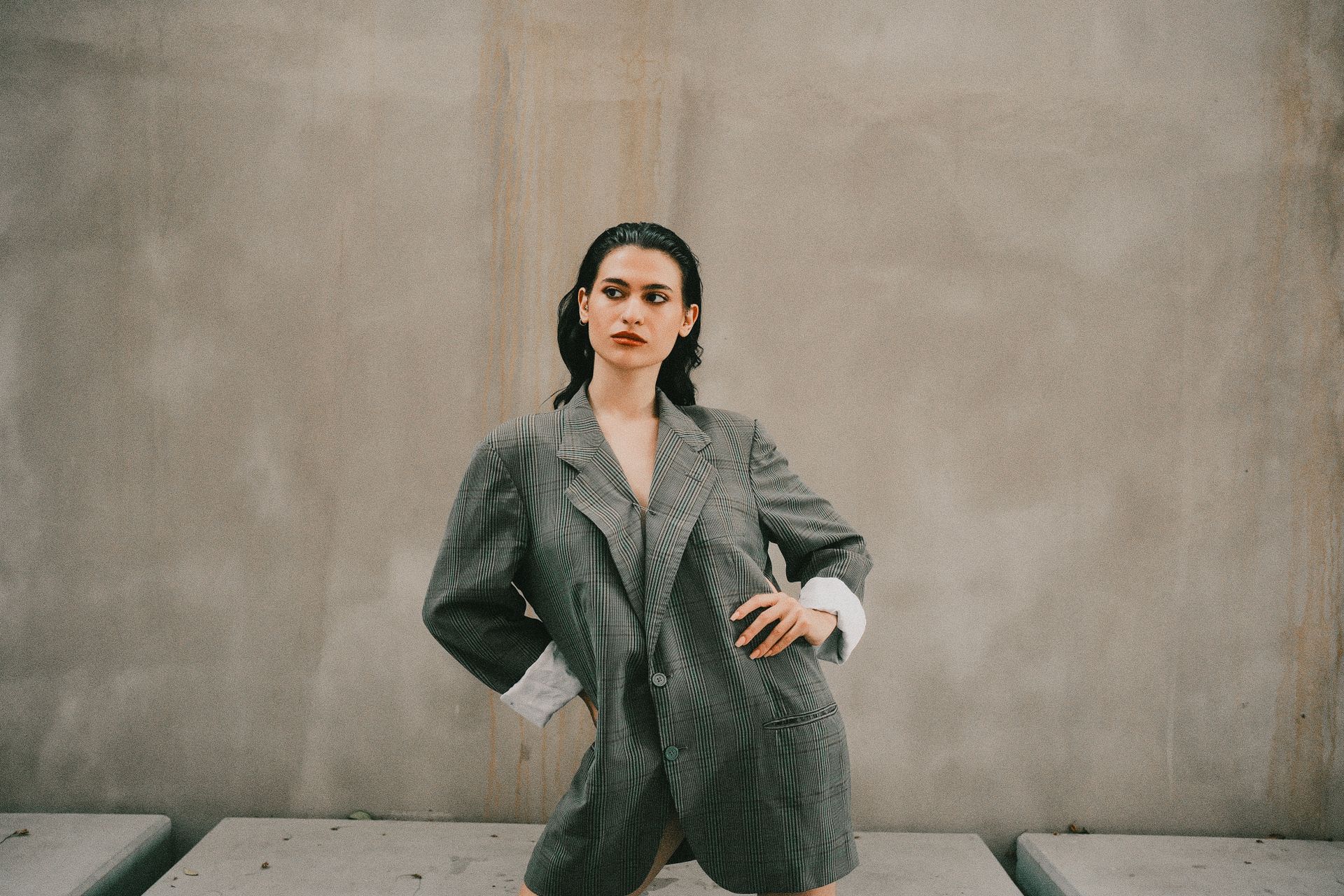
Turn a Written Brief into a Finished Composition
Qwen Image 2.1 creates images from natural-language descriptions, bringing subjects, lighting, materials, and composition into one picture. Describe the focal point and where it belongs, then add the mood and visual style. Its refined portrait lighting and textures support both photographic scenes and illustrated work, with room to revise the brief as your direction develops.
Qwen Image 2.1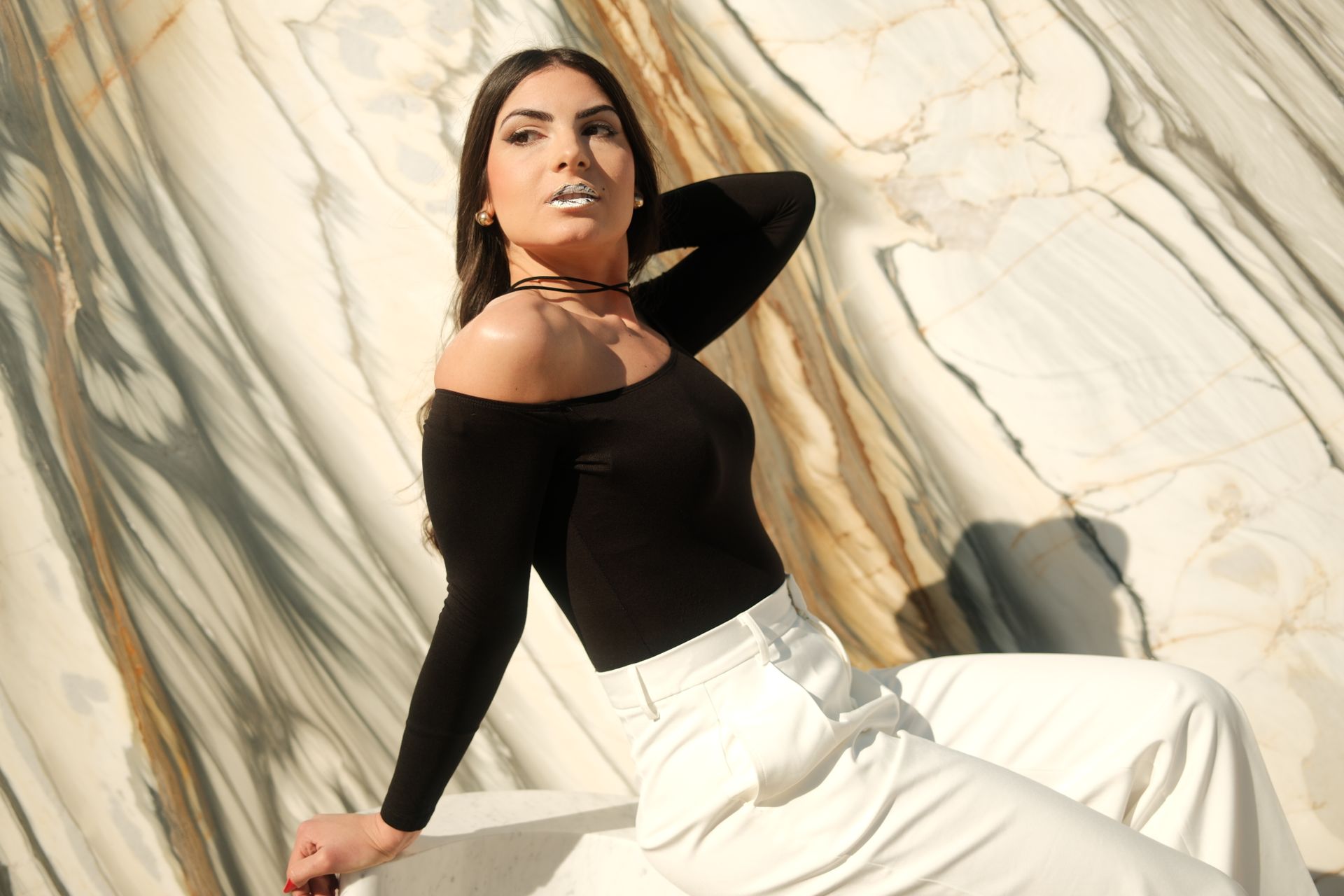
Generate Transparent Assets from the Start
Qwen Image 2.1 supports images with a transparent background, including subjects made directly from text and elements extracted from an existing photograph. It can also edit an already transparent image. Compared with generating a full scene and removing the background afterward, this gives asset creation a more direct starting point for stickers, isolated objects, and layered designs.
Qwen Image 2.1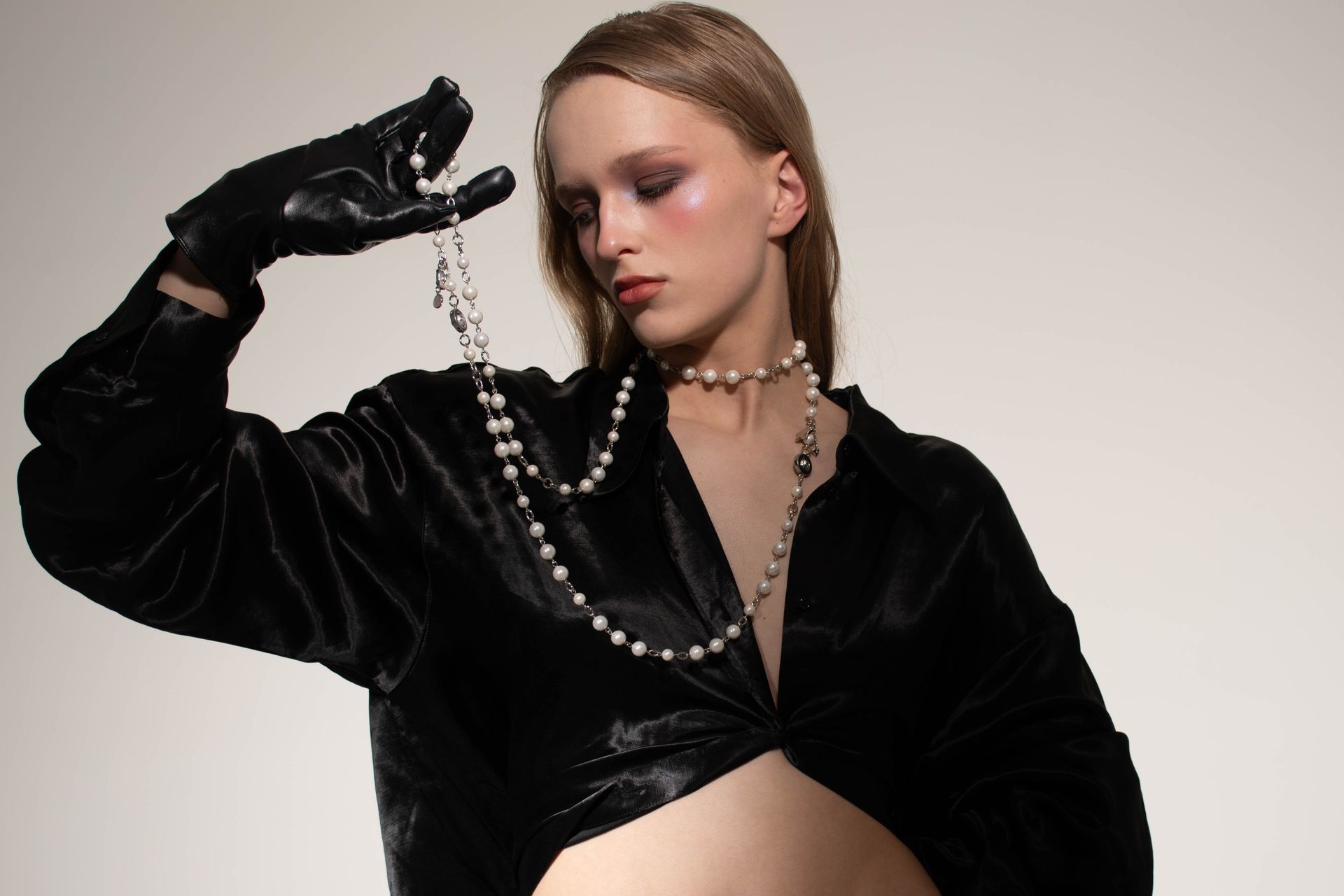
Guide Changes with References and Local Instructions
Qwen Image 2.1 combines reference images with written instructions to guide a new composition or a targeted change. Its editing capabilities include region guidance through circles, painted annotations, or separate masks, with attention to faces and product details. Compared with describing every detail again, references provide a concrete visual starting point for what should stay consistent.
Qwen Image 2.1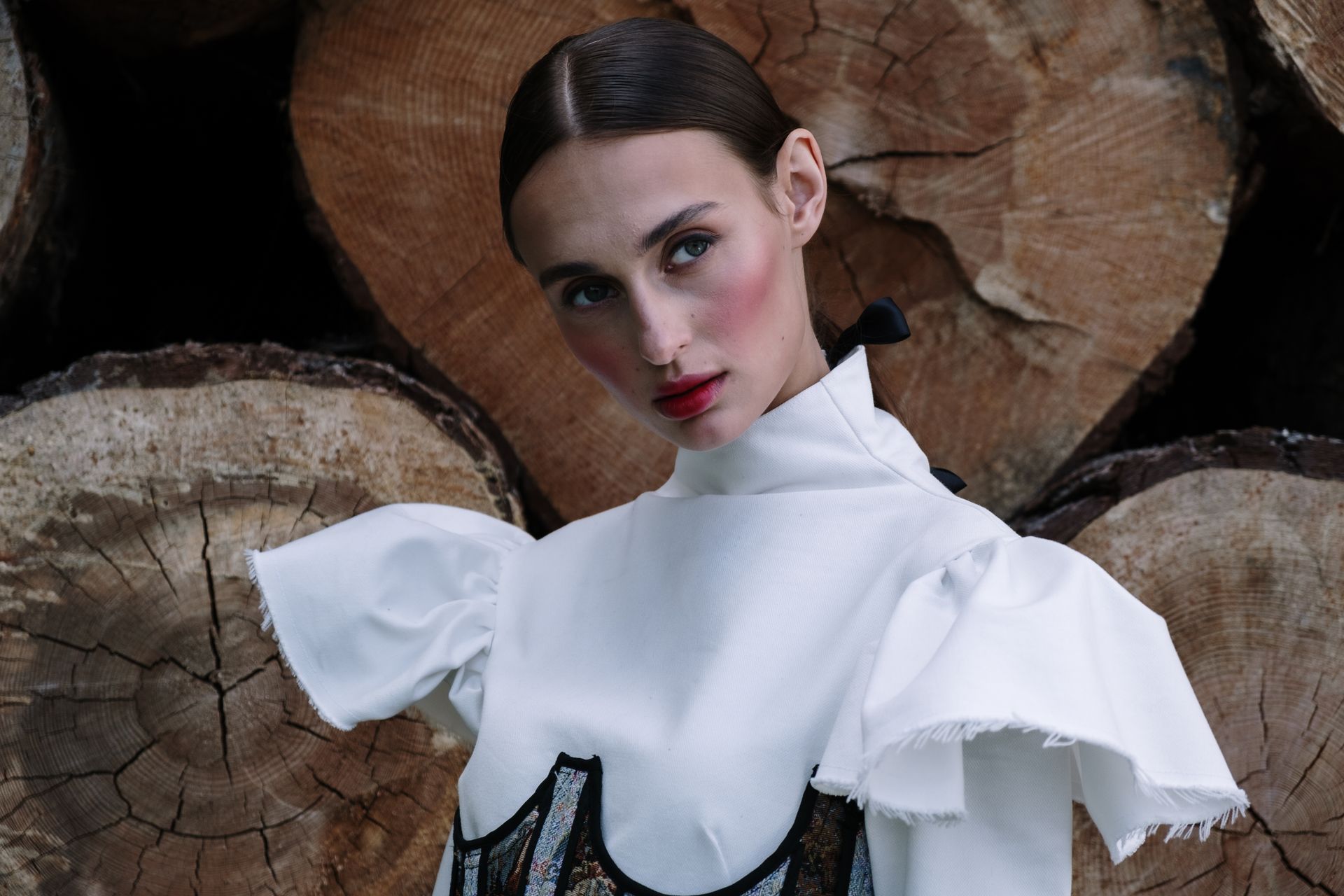
Bring Typography into the Visual Design
Text is part of an image’s composition, from a short headline to a label that follows the surface of an object. Qwen Image 2.1 focuses on typography alongside the scene itself. Specify the exact wording, approximate placement, and visual hierarchy, then inspect the result closely before using it in a finished design.
Qwen Image 2.1Build Your Visual Brief in Three Steps
Use the generator above to explore a prompt or reference-based edit. Check the selected model and its visible controls before submitting.
Write or Upload Your Starting Point
Choose text-to-image for a new composition or image-to-image for an edit. Describe your subject and framing, or explain the change and details to preserve. Follow the upload limit shown in the generator.
Choose the Frame and Detail Level
Select an aspect ratio for your intended placement and a resolution from the displayed options. Keep your first prompt focused so you can judge the composition before adding smaller details.
Review, Refine, and Download
Inspect the generated preview for text, faces, edges, and product details. Refine the prompt if needed, then use the download control to save the result.
Why Explore Qwen Image 2.1?
Connect a clear starting point with specific revisions. These capabilities and uses help you plan what to make next.
🧩 Creation and Editing Together
Qwen Image 2.1 supports both starting from a description and working from an existing picture. That combination makes it easier to think about a visual as something you can develop through successive decisions.
✨ Transparency as an Output
Qwen Image 2.1 can produce an alpha channel as part of the image. For isolated design elements, that offers a useful alternative to starting every composition with a solid background.
🎯 References for Visual Continuity
Qwen Image 2.1 uses visual references to guide people, objects, and scene details across edits. Clearly stating what must stay consistent helps keep the creative direction focused as other elements change.
🛍️ Product Presentation Studies
Explore a new setting, arrangement, or mood around a reference product. Check its shape, textures, and lettering against the original before choosing an image for a catalog concept or campaign presentation.
✍️ Posters and Graphic Layouts
Use Qwen Image 2.1 to explore a headline, central subject, and supporting visual elements together. Short copy and a clear hierarchy give you a practical starting point for posters, covers, and social graphics.
🎬 Story and Character Development
Reference-guided compositions can support character studies and storyboard exploration. Define the person, location, and action for each image, then review continuity across the sequence before assembling a larger visual narrative.
What Creators Like About Qwen Image 2.1
Creative perspectives on image generation, transparent assets, typography, and reference-guided editing.
A Flexible Creative Starting Point
I like having image creation and editing in one workflow. A clear brief gives me a starting point, with room to explore different lighting, styles, and compositions.
Transparent Assets for Design
Transparent backgrounds are the feature that interests me most. For stickers and isolated objects, I prefer an asset that can fit into a layout without a surrounding scene.
References Keep the Direction Clear
For product visuals, I care about keeping the object recognizable in a new setting. Reference-guided editing fits that approach, with shape and texture as my priorities.
Typography Matters to the Layout
I appreciate the attention to typography. A short headline, clear focal point, and good spacing are exactly what I look for in a poster or social graphic.
Room to Develop a Character
I want character images to feel connected as the framing changes. Visual references suit that goal while leaving room to explore different actions, backgrounds, and moods.
Focused Changes Make Sense
I prefer a focused edit over describing an entire picture again. Naming the change and the details to preserve is a practical way to shape the next version.
Qwen Image 2.1: Practical Questions
Plan your prompts, references, and checks before choosing a final image.
How should I describe a transparent image?
Qwen Image 2.1 supports native transparency. Ask for a transparent background and describe the isolated subject clearly. Save a format with an alpha channel, then check the edges on light and dark backgrounds. A white background alone does not prove transparency.
What makes a reference-based editing prompt clearer?
Separate what changes from what stays. Name the subject, describe the requested change, and list the important features to preserve. Qwen Image 2.1 supports multiple references; assign each a clear role so the intended person, object, or style is understandable.
How can I improve text inside an image?
Give the exact wording in quotation marks, keep it short, and describe its position and relative size. Qwen Image 2.1 pays attention to typography, but generated lettering still needs review. Check spelling and small characters at full size, and simplify the layout if several text elements compete.
Can I change one area while preserving the rest?
Qwen Image 2.1 supports local edits guided by marked regions or a separate mask in compatible workflows. Describe both the target area and the requested change. When using a generator with written instructions only, make the location precise and inspect neighboring details afterward.
Which aspect ratio should I choose?
Choose square for a compact tile, portrait for a vertical layout, or landscape for a wide composition. Use the selected model’s available ratios. Leave space around faces, text, and objects for later cropping.
What should I inspect before downloading the final version?
For Qwen Image 2.1 workflows, check faces, product shape, embedded text, and transparent edges. Compare edits with the reference and inspect the surrounding scene for unintended changes. Download the image once it meets your brief.