
MiniMax H3 Image
Create still images from detailed text, combine visual references, and refine scenes with written edits. MiniMax H3 Image brings image generation and editing together with support for up to 16 references and high-resolution output.
Loading model...
MiniMax H3 Image: From Creative Brief to Finished Visual
MiniMax H3 Image combines text-based creation, reference-guided composition, and image editing. Direct the content of a scene and develop its details through clear written instructions.
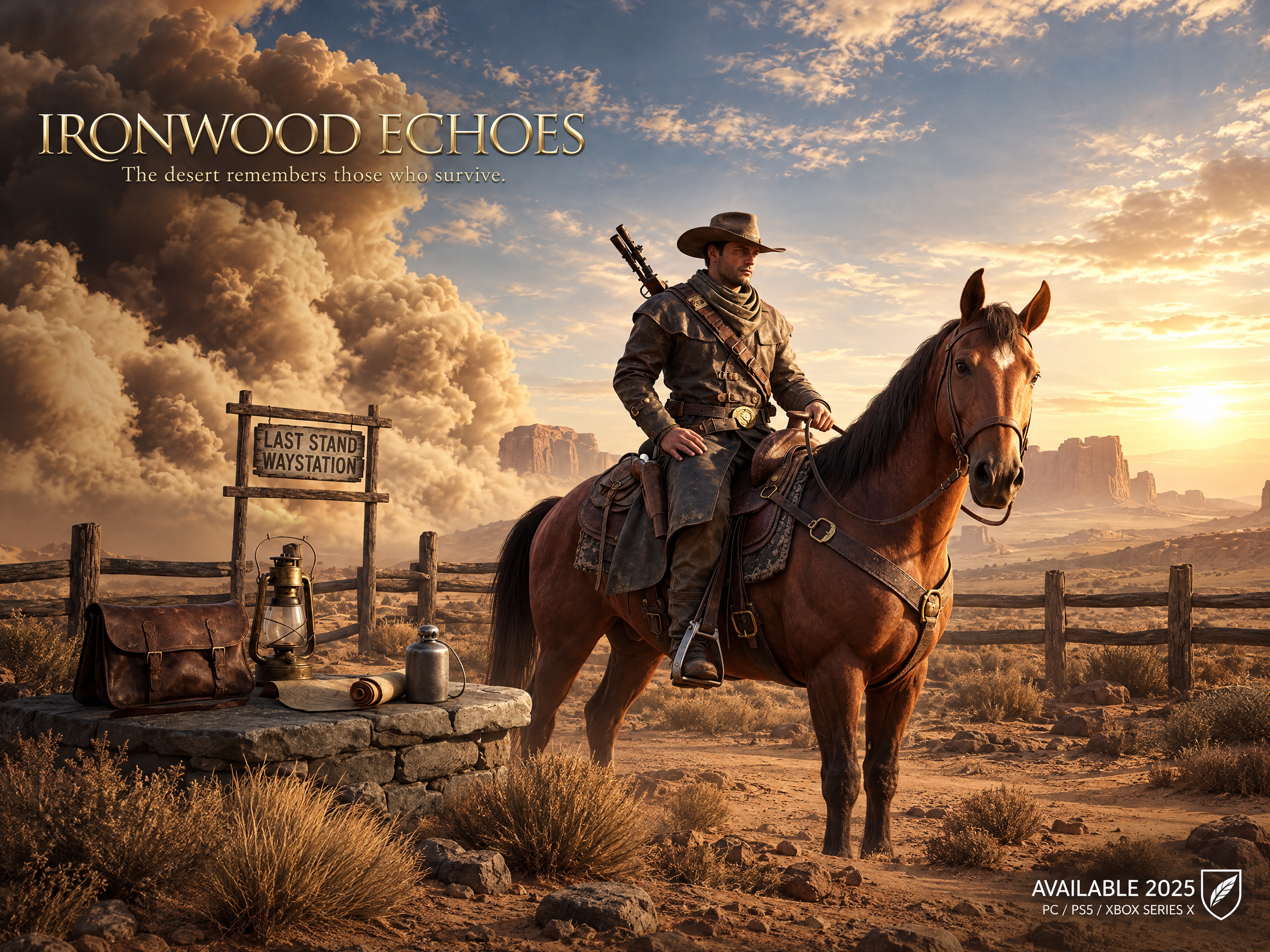
Create Images from a Written Brief
Describe the subject, setting, lighting, and composition you want. MiniMax H3 Image turns a text brief into a still image, with support for detailed instructions about how objects relate and where they belong. Develop a scene from scratch, then refine your wording to explore a different visual direction.
MiniMax H3 Image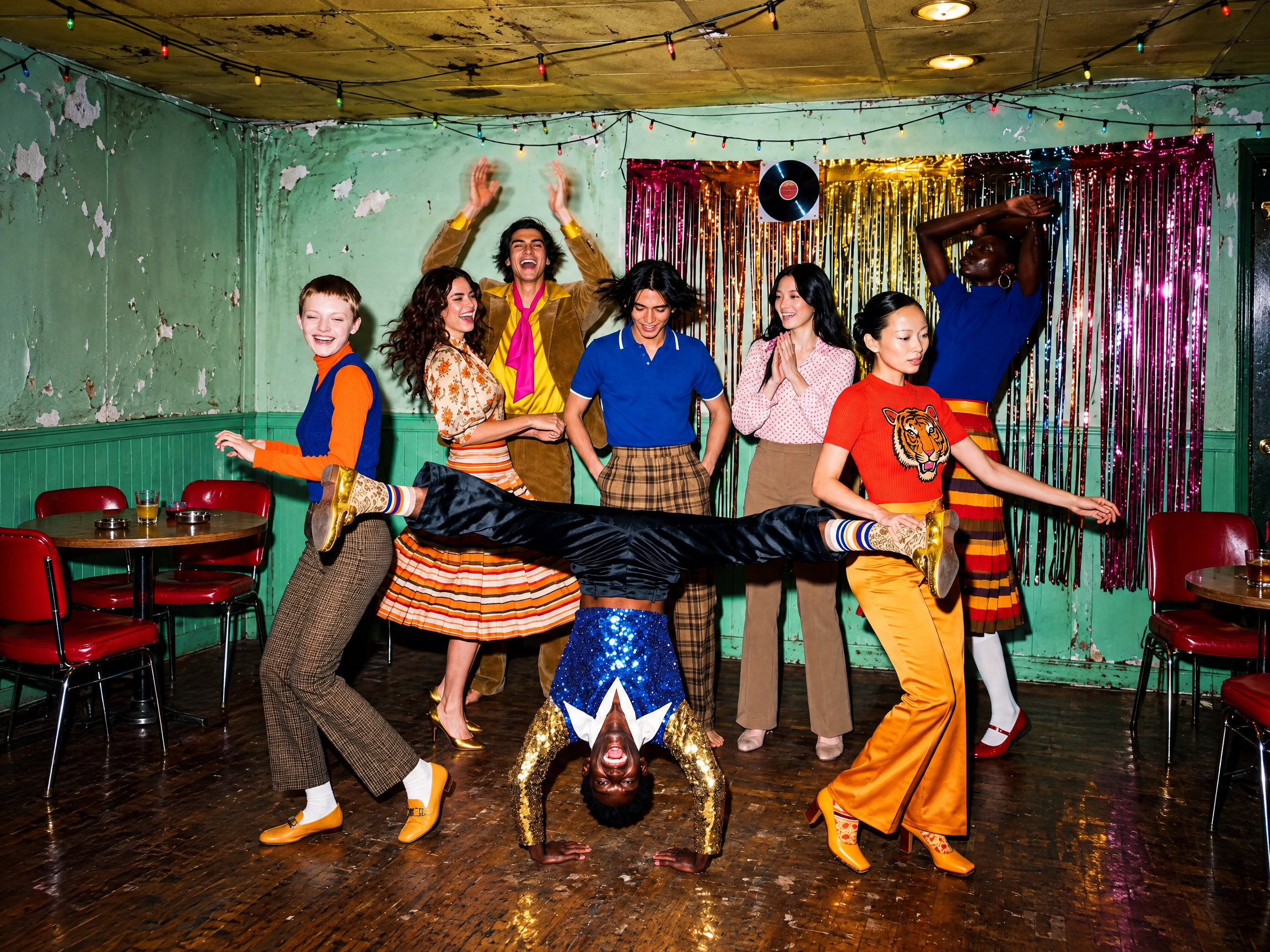
Combine Up to 16 Visual References
Give different references clear jobs: one for the subject, another for the setting, and another for the visual style. MiniMax H3 Image supports up to 16 reference images when generating or editing. Describe which details to borrow from each image so the final composition has a deliberate visual hierarchy.
MiniMax H3 Image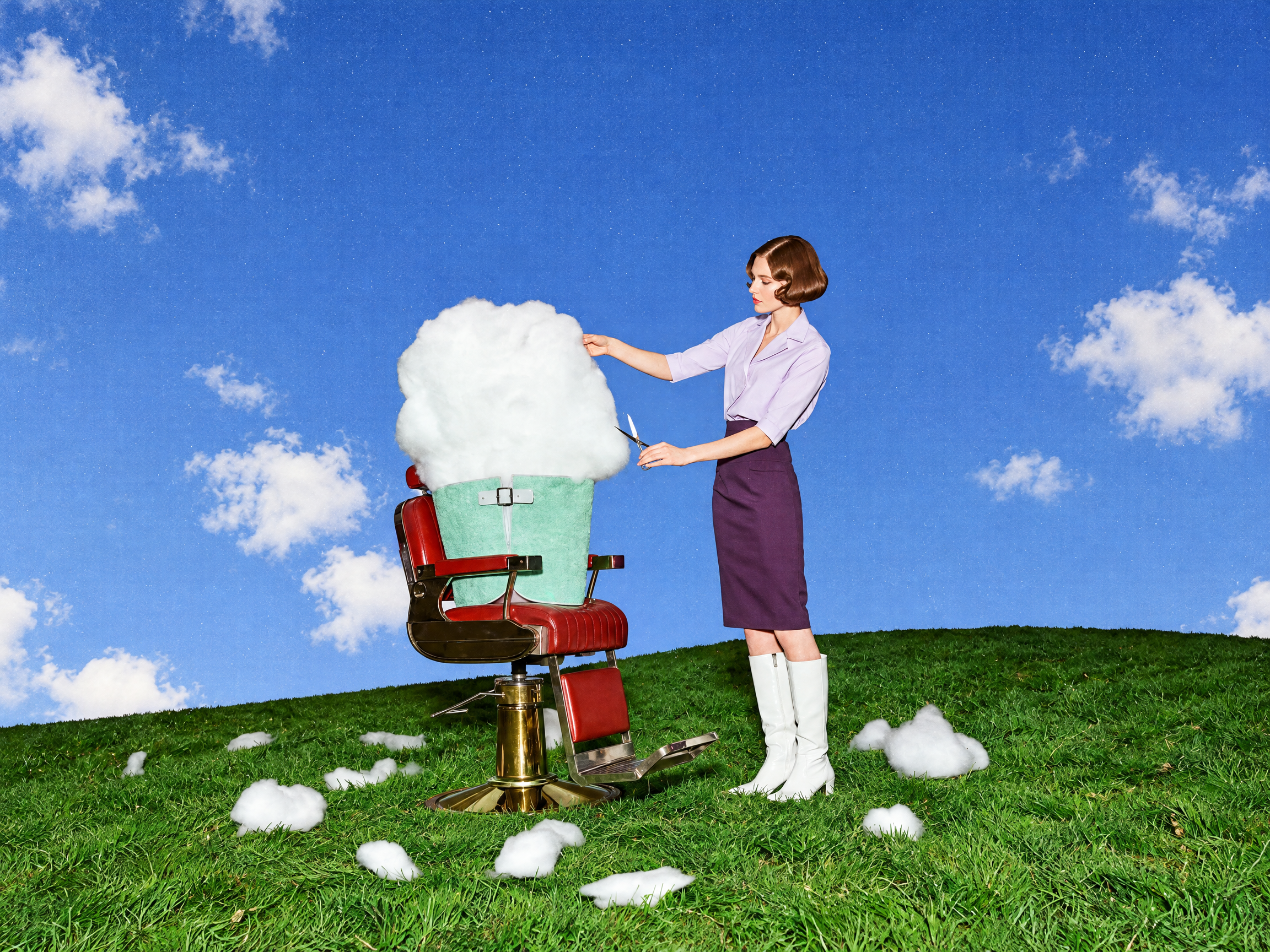
Edit Images with Direct Instructions
Start with an existing image and describe the changes you need. MiniMax H3 Image supports reference-based editing within the same image workflow as generation. Specify the object, appearance, or placement to change, then name the elements to preserve. Review nearby details and reflections when an edit affects several parts of the scene.
MiniMax H3 Image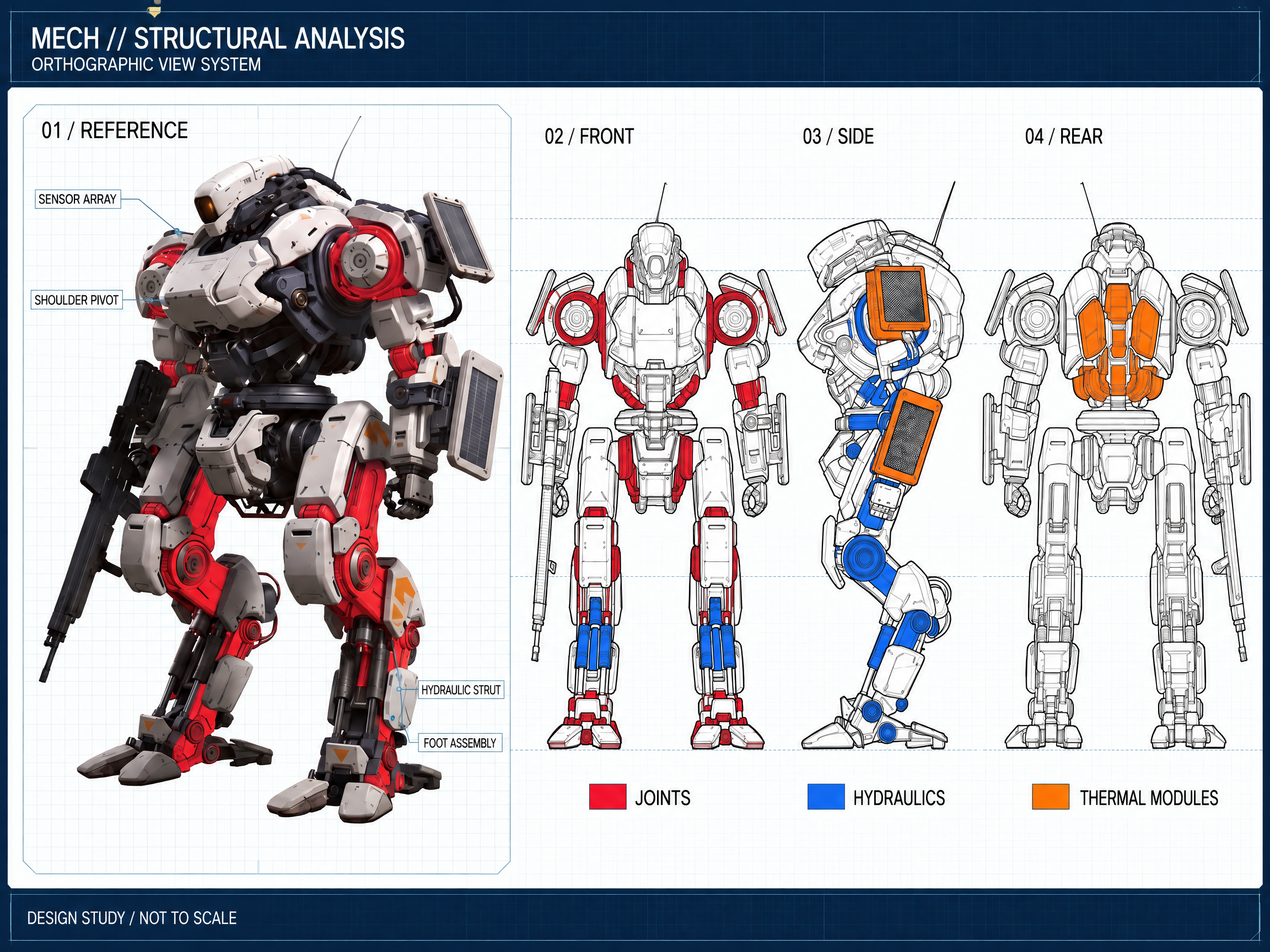
Generate High-Resolution Visual Detail
MiniMax H3 Image supports high-resolution output, including 4096 × 4096 square images. This provides more room for fine textures and small visual details than a lower-resolution canvas. Choose a composition that fits the intended placement; a wide image and a square image use different dimensions even at a comparable detail level.
MiniMax H3 ImageCreate an Image in Three Steps
Create with MiniMax H3 Image in the tool above: choose text or reference images, set your canvas, and review the result before downloading.
Choose Your Input
Select MiniMax H3 Image and choose text-to-image or image-to-image. Start with a written scene description, or add up to 16 reference images for an edit. Keep the main subject easy to identify and explain the role of each reference.
Set the Composition
Write the subject, surroundings, viewpoint, and style. Choose an aspect ratio, a 1K, 2K, or 4K size, and PNG, JPEG, or WebP output. For an edit, list what to change and what to preserve, then submit the image for generation.
Review and Download
Preview the result and compare it with your original brief. Check small details, written text, and the edges around edited objects. Download the image you want to keep. If something misses your intent, revise that part of the prompt and generate a new version.
Why Choose MiniMax H3 Image for Your Visual Ideas
MiniMax H3 Image offers several ways to communicate a visual idea, from a detailed written brief to a set of references. Use those controls to explore a direction and evaluate the result.
🎯 Carry a Detailed Brief into the Image
MiniMax H3 Image follows descriptions of subjects, placement, and relationships. Compared with a short, open-ended prompt, a structured brief gives you more ways to steer the result. State the essential requirements first, then check whether each one appears clearly in the finished composition.
🧩 Give References Separate Roles
The model accepts multiple references for a shared result. Compared with relying on a single source image, this lets you communicate subject, layout, and style separately. A small set of relevant, clearly identified references is often easier to direct than a collection with conflicting details.
🔍 Leave Room for Texture and Detail
High-resolution output makes MiniMax H3 Image useful when small details matter in the final image. Inspect surfaces, fine edges, and background elements before exporting. A larger canvas gives you more pixels to work with, while the prompt still determines what those pixels should show.
🛍️ Develop Product Visual Concepts
Explore product arrangements, surrounding materials, and scene styling from a visual brief. Reference images can communicate the appearance you want to retain. Check shapes, proportions, and any visible packaging text before selecting a concept for further design work.
🎮 Explore Characters and Worlds
Build visual directions for a character, environment, or game scene. Describe the viewpoint, atmosphere, and important landmarks. Reuse relevant references as you explore variations, and compare the results for consistent appearance rather than assuming every new image will match automatically.
🎨 Prepare Campaign and Editorial Concepts
MiniMax H3 Image can help turn an art direction into a visual draft for a banner, poster, or editorial illustration. Specify where the subject should sit and leave space for copy. Keep generated lettering short, and finish longer written content in your usual design tool.
What Creators Are Saying About MiniMax H3 Image
Feedback from creators exploring images and creative ideas with MiniMax H3 Image.
Editorial Creator
For a spicy editorial concept, I would start with bold lighting, expressive styling, and a striking composition. My brief would describe the mood clearly, then use references to communicate the visual direction.
Digital Artist
I start with unrestricted imagination: unusual materials, surreal settings, and unexpected combinations. A detailed MiniMax H3 Image prompt would help me turn that creative direction into a specific scene to explore.
Concept Designer
An unlimited supply of ideas can begin with one character or setting. I would explore different palettes, viewpoints, and atmospheres, keeping the same references close while deciding which direction best fits the project.
Creative Director
“No restriction” describes my creative mindset when brainstorming. I would explore unexpected scene ideas with MiniMax H3 Image, then refine each brief around a clear subject, visual hierarchy, and intended use.
Product Stylist
I would use product references to explain the shape, materials, and details that matter, then explore a spicy color palette or a more understated setting. The final image would need a careful check against the original product.
Visual Storyteller
For me, unrestricted imagination means exploring a story from more than one angle. I would describe the character, setting, and atmosphere, then compare variations for a visual direction that feels coherent.
MiniMax H3 Image FAQ
Practical answers about references, canvas size, image edits, text, and reviewing your finished image.
Can I create an image without uploading a reference?
Yes. It supports text-to-image generation from a written description. Include the subject, setting, viewpoint, and lighting, then add any essential placement instructions. References are useful when an existing subject or visual direction matters, but they are not required for a new text-based composition.
How should I organize multiple reference images?
MiniMax H3 Image supports up to 16 references. Explain which image defines the subject, which supplies the style, and which guides the layout. Remove references that contradict one another. For an edit, identify the base image and say what must stay unchanged as well as what should change.
Does 4K always mean a 4096 × 4096 image?
No. That dimension describes a square 4K example. MiniMax H3 Image supports other canvas shapes, and the final width and height depend on the selected aspect ratio and size settings. Check the dimensions of the completed image before planning a crop, layout, or print placement.
Can I change one detail while keeping the rest of a scene?
MiniMax H3 Image supports instruction-based edits with reference images. Name the change precisely and explicitly preserve the camera angle, background, lighting, or subject appearance that matters. Preservation is not guaranteed: inspect the whole result, including hands, edges, shadows, and reflected objects, before accepting the edit.
How can I improve titles and labels in generated images?
Use short phrases and put the exact wording in quotation marks. Describe where each title or label belongs and avoid crowding the canvas. The model can render text, but dense paragraphs and intricate lettering need careful review. Add longer copy after generation when exact wording is essential.
What should I check before downloading a result?
Check the subject, object count, placement, and every requested edit against your brief. Zoom in on faces, hands, lettering, reflections, and fine edges. Confirm that the composition leaves enough space for its intended layout. Use the result download control to save your selected image, then verify the saved file opens correctly.