
GenSpicy AI Video Generator
Turn a striking portrait, a fashion concept, or a written idea into a video. Create with GenSpicy using expressive gestures, flowing fabrics, atmospheric lighting, and camera movement that gives each scene its own mood.
Click to upload
JPEG, PNG, WebP | 300-6000px | Max 10MB
Click to upload
JPEG, PNG, WebP | 300-6000px | Max 10MB
Next Step:
Explore GenSpicy Video Generation Features
Generate videos from text or images, guide subject and camera movement, and control the output format. These capabilities support different starting points and video requirements.
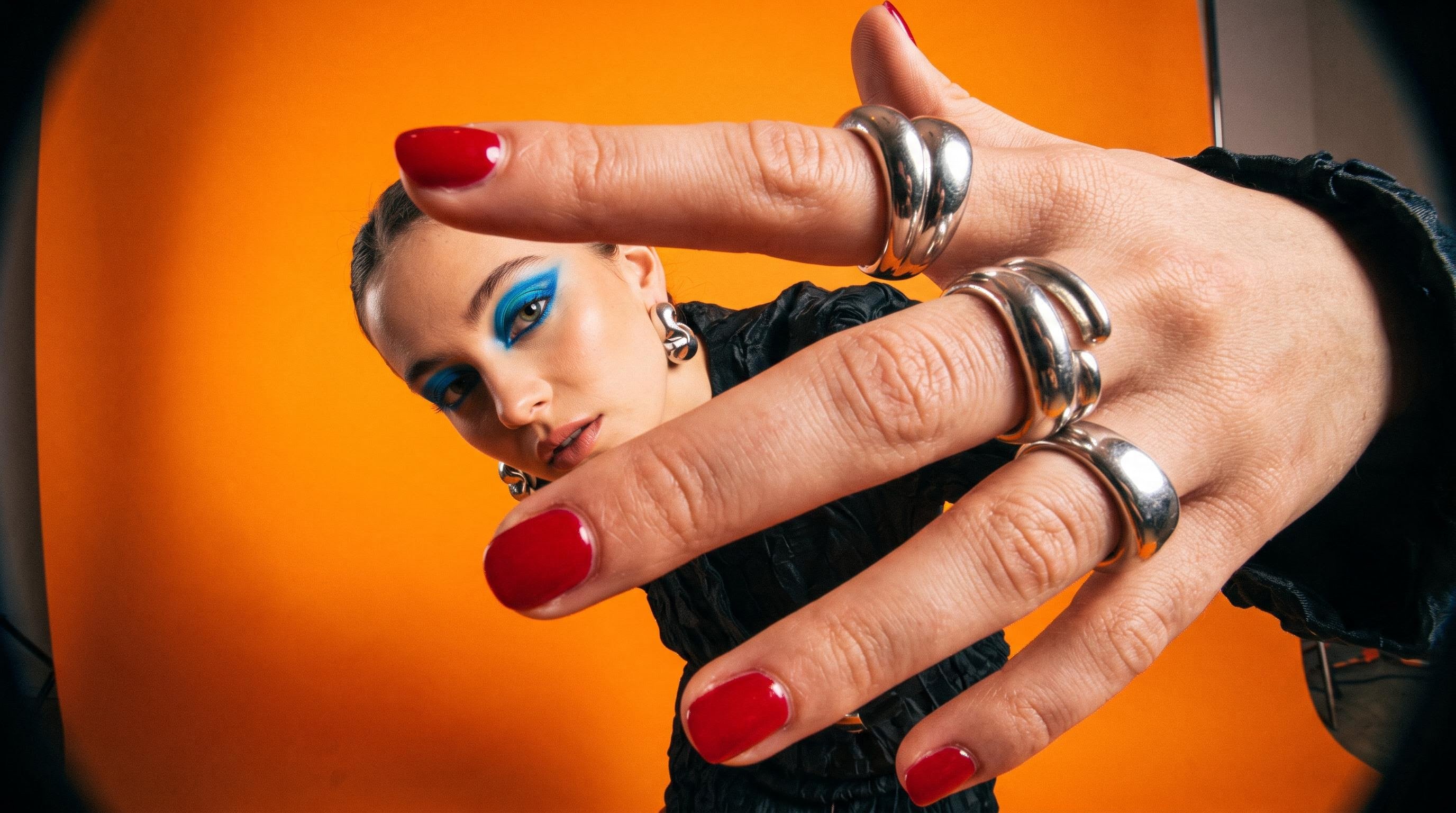
Text-to-Video Generation
GenSpicy generates video scenes from written descriptions. Text prompts define the subject, surroundings, action, and visual style, allowing a scene to be created without a starting image. Lighting and composition can be included in the same description, giving the generated video a direction that goes beyond a basic subject or setting.
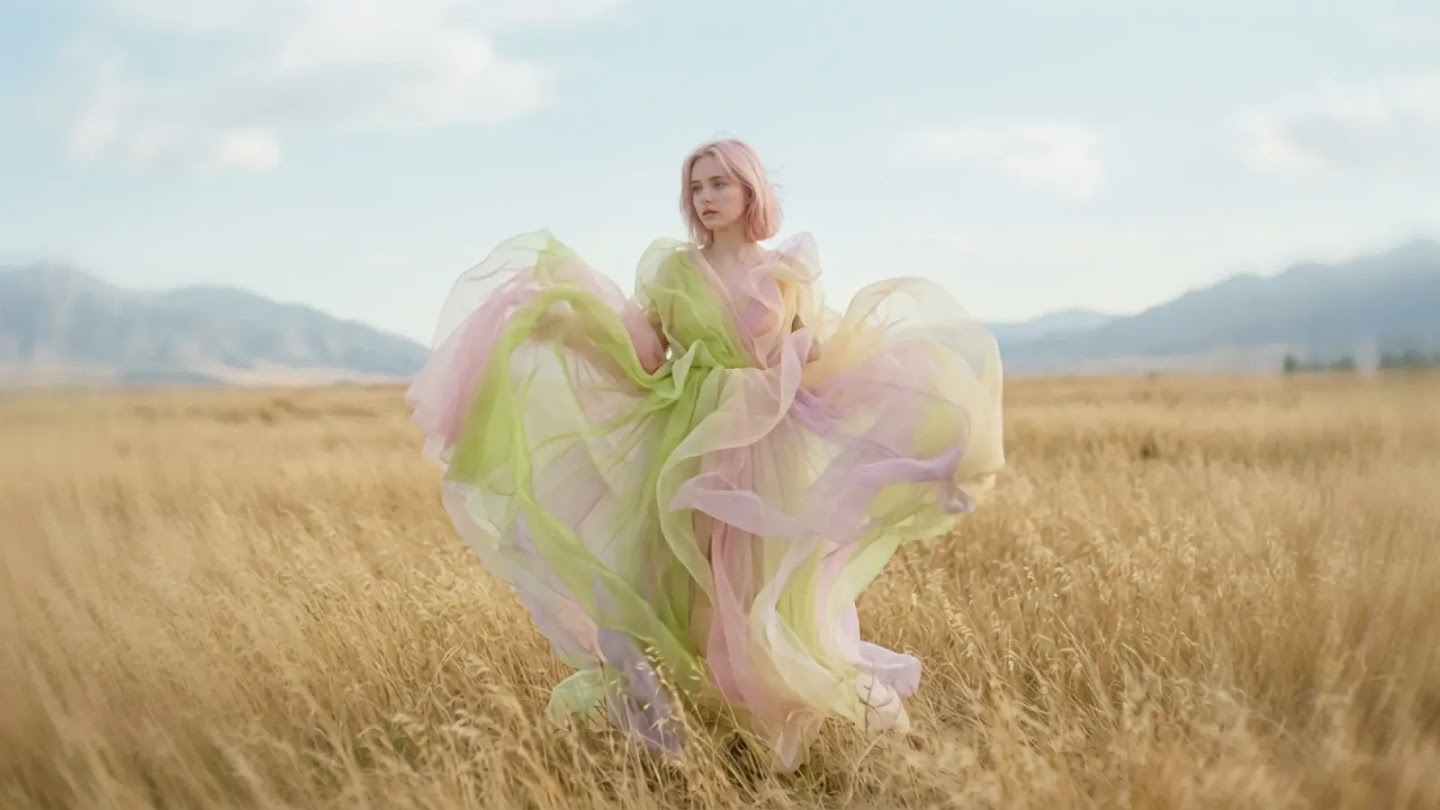
Image-to-Video Generation
GenSpicy animates an uploaded image using the still as the starting visual reference. The image establishes the initial subject, appearance, and composition, while a motion prompt describes how the scene develops. This capability brings existing visuals into video and supports subject movement, environmental motion, and changes in camera perspective.
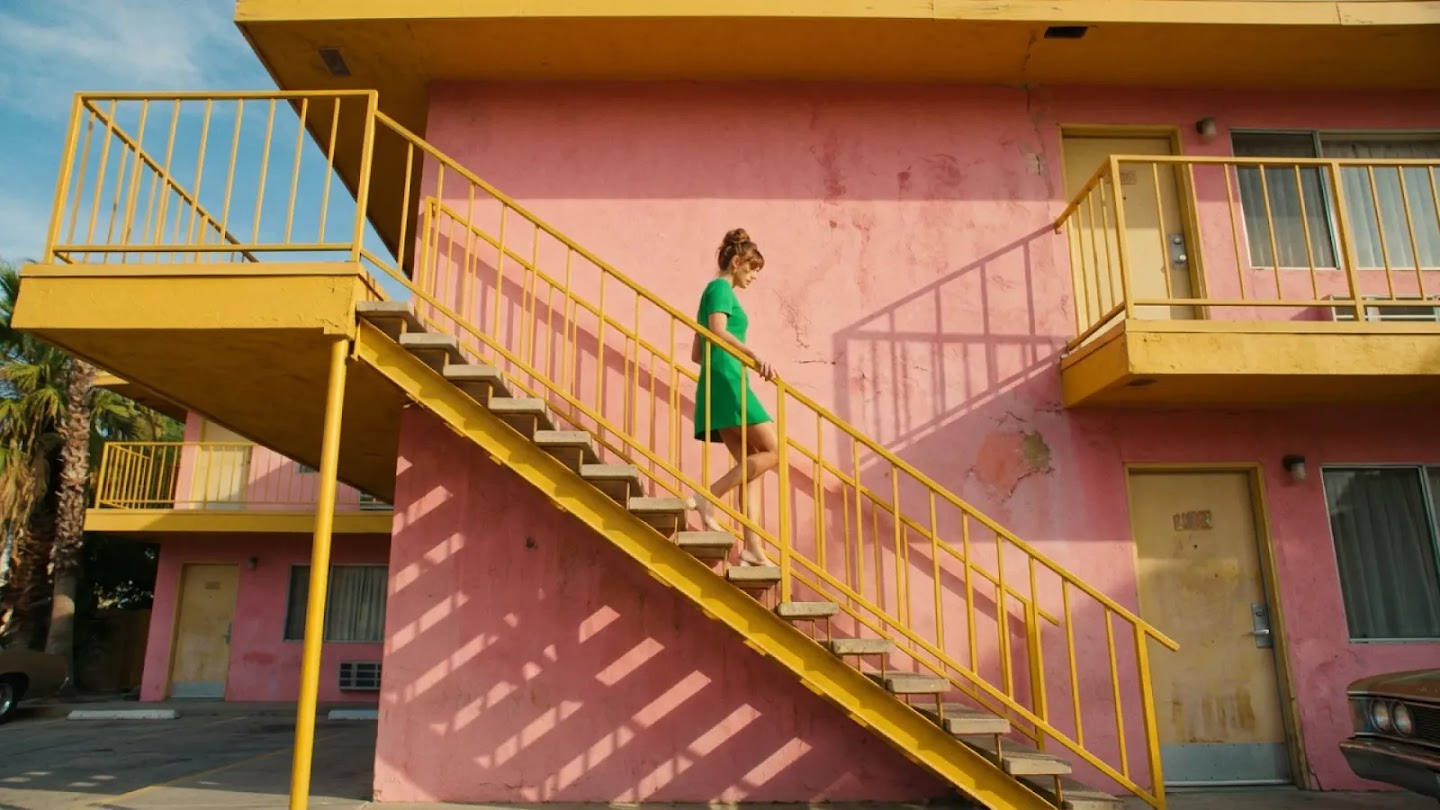
Prompt-Guided Motion and Camera Direction
Motion prompts guide both what happens within a scene and how the camera observes it. Supported directions include subject actions, a fixed viewpoint, pans, and gradual camera movement. Combining an action with a camera instruction gives the shot a coordinated direction, while the generated result can be reviewed and refined through prompt changes.
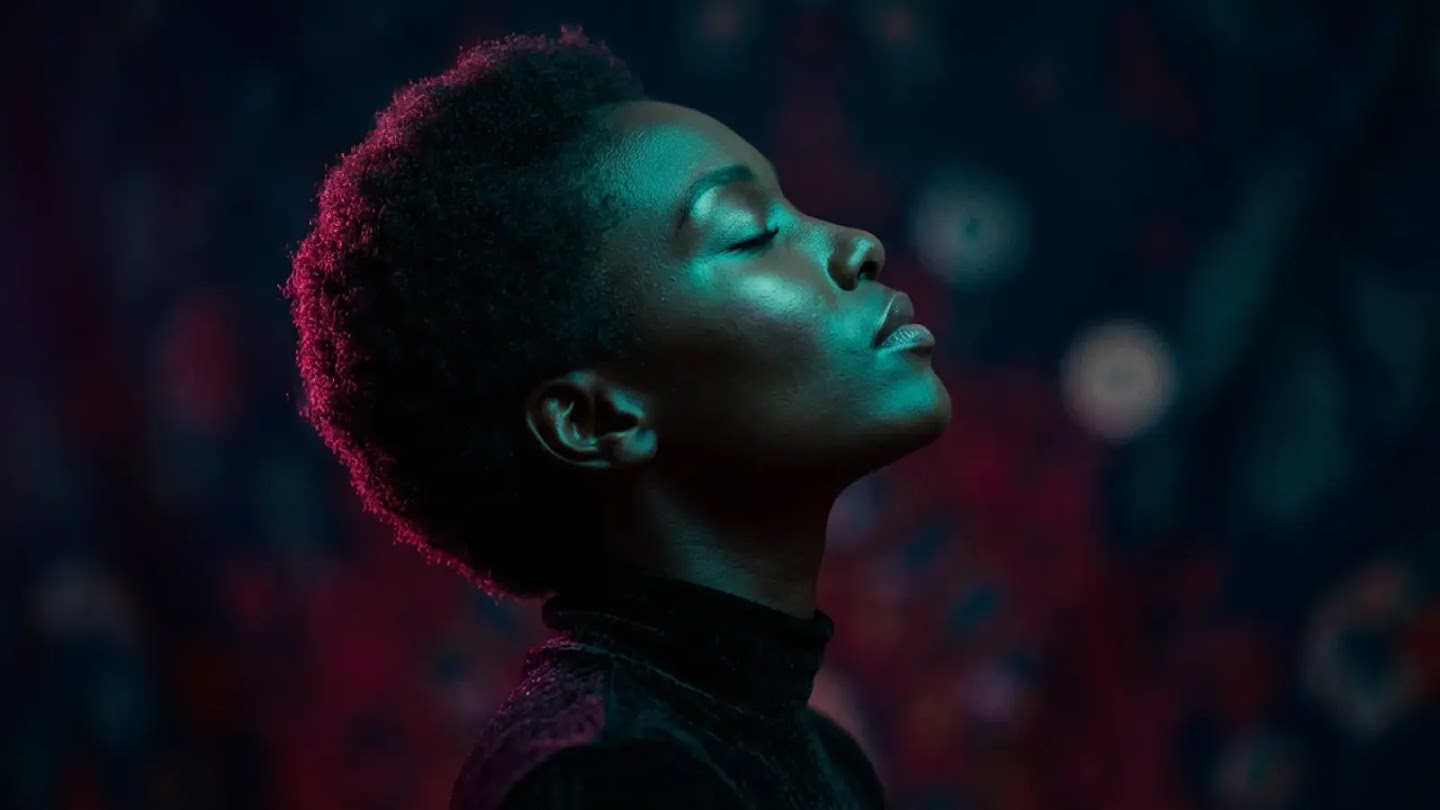
Video Format and Output Settings
Video generation includes options for aspect ratio, clip duration, and resolution. Landscape, portrait, and square framing support different output requirements, while duration and resolution determine the requested clip length and image dimensions. Available options depend on the selected generation mode and model, so the output can be configured before generation.
Create a GenSpicy Video in Three Steps
Start with a visual idea, direct the movement, and save the shot you want to keep.
Upload an Image or Describe a Scene
Choose image-to-video and upload a sharp portrait, outfit photo, or other visual reference. To start from words, switch to text-to-video and describe what appears in the scene. Begin your GenSpicy project with a clear subject and setting so the action has a simple foundation.
Set the Format and Direct the Action
Select an available aspect ratio, duration, and resolution. Describe what the subject does, how the camera moves, and the light you want. For a focused GenSpicy shot, try one gesture and one camera move: the model slowly turns as the camera moves closer, with soft light catching the hair.
Generate, Review, and Download
Generate your GenSpicy video and watch the completed preview from beginning to end. Check expressions, hands, clothing, and background details. Refine one instruction if you want a different pace or framing, then download the version you like. Use the clip on its own or bring it into your preferred video editor.
Create Expressive Videos with GenSpicy
Shape the subject, movement, and mood of each shot, from a polished beauty portrait to a cinematic fashion moment.
🖼️ Start with the Image You Have
An image establishes a composition, subject, and palette before the movement begins. Text-to-video gives you room to invent those elements together. GenSpicy supports both starting points, so you can choose the approach that fits how far your creative idea has developed.
🎥 Put Your Shot Direction into Words
Describe a slow push-in, a steady side view, or a camera following the subject through a location. Pair that direction with a specific action. GenSpicy brings movement and composition into the same creative brief, making it easier to explore a coherent shot.
📐 Compose for the Screen You Need
Choose a landscape composition for a wider scene or a vertical frame for a portrait-led story. Set the format before generating so the subject has space to move. GenSpicy lets you plan the framing around the image and the place you want to use it.
💄 Beauty and Makeup Close-Ups
Explore a look through eye contact, a small change of expression, or a gradual shift in camera distance. Use GenSpicy for beauty concepts where makeup, skin texture, hair, and light establish the mood. Check fine details as you select the finished clip.
👗 Fashion and Editorial Stories
Turn an outfit photo or styling idea into a walking shot, a fabric study, or a cinematic character entrance. GenSpicy gives you a way to try different settings and pacing while developing a fashion story, from studio lighting to a dramatic outdoor scene.
📱 Short Videos for Social Content
Create an opening portrait, a mood-setting scene, or a brief reveal to introduce your idea. Download individual GenSpicy clips and arrange them into social edits with your own titles and music. A clear subject and purposeful movement give each shot something for viewers to follow.
GenSpicy Video Creation FAQ
Answers about generation modes, video settings, motion control, and saving your results.
Can I create a video from text alone?
Yes. Text-to-video creates a scene from a written description without requiring a starting image. The prompt can specify the subject, setting, action, lighting, and camera movement. This mode is useful when the scene begins as an idea rather than an existing visual.
Does GenSpicy support image-to-video generation?
Yes. Image-to-video uses an uploaded image as the starting frame and a text prompt to guide the movement. The image provides the initial composition, while the prompt describes how the scene develops. The finished video can include subject motion, environmental movement, and camera changes.
What video lengths and resolutions are available?
Available durations and resolutions appear in the generation settings. The options depend on the selected model and mode, so check those controls before starting a task. Duration determines the requested clip length, while resolution determines the output dimensions. Each generation uses the settings selected for that task.
Can I generate both vertical and horizontal videos?
Yes. The aspect-ratio options include vertical and horizontal formats, with square and other ratios available where supported. The selected ratio determines the shape of the generated frame. It can be set before generation to suit a mobile screen, a wider display, or a planned edit.
Can I control the action and camera movement?
Yes. Written prompts can guide subject actions and camera movement, including pans, tracking shots, gradual push-ins, or a fixed viewpoint. These instructions guide the generation rather than setting an exact motion path. Results can be reviewed and the prompt adjusted when a different movement is needed.
Can I preview and download completed videos?
Yes. A completed generation appears in the video preview, where it can be played before downloading. The download control saves the finished clip for use in a video editor or another project. Multiple downloaded clips can be combined into a longer sequence outside the generator.